CoreFreev1.162

Creator Studio

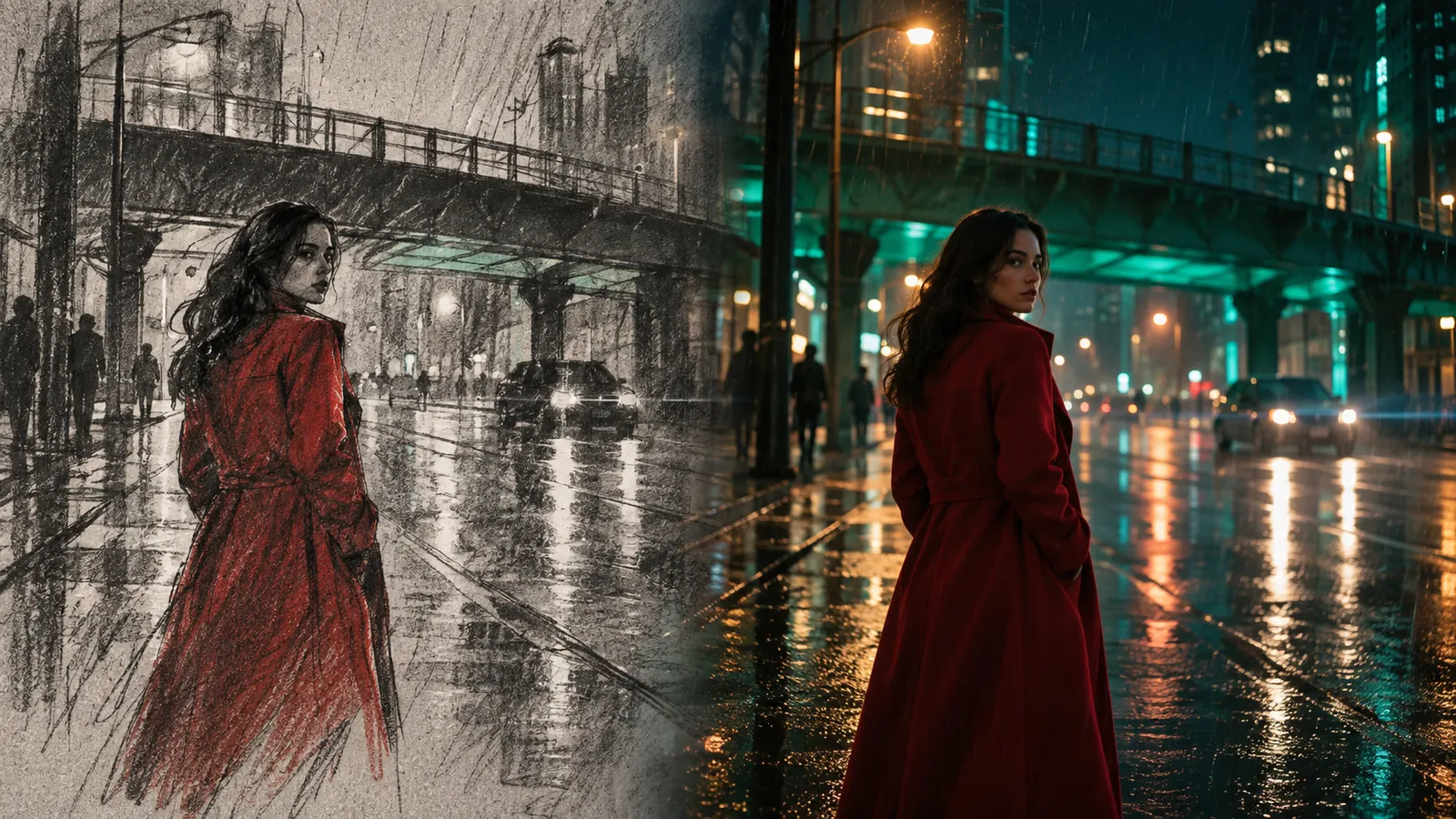
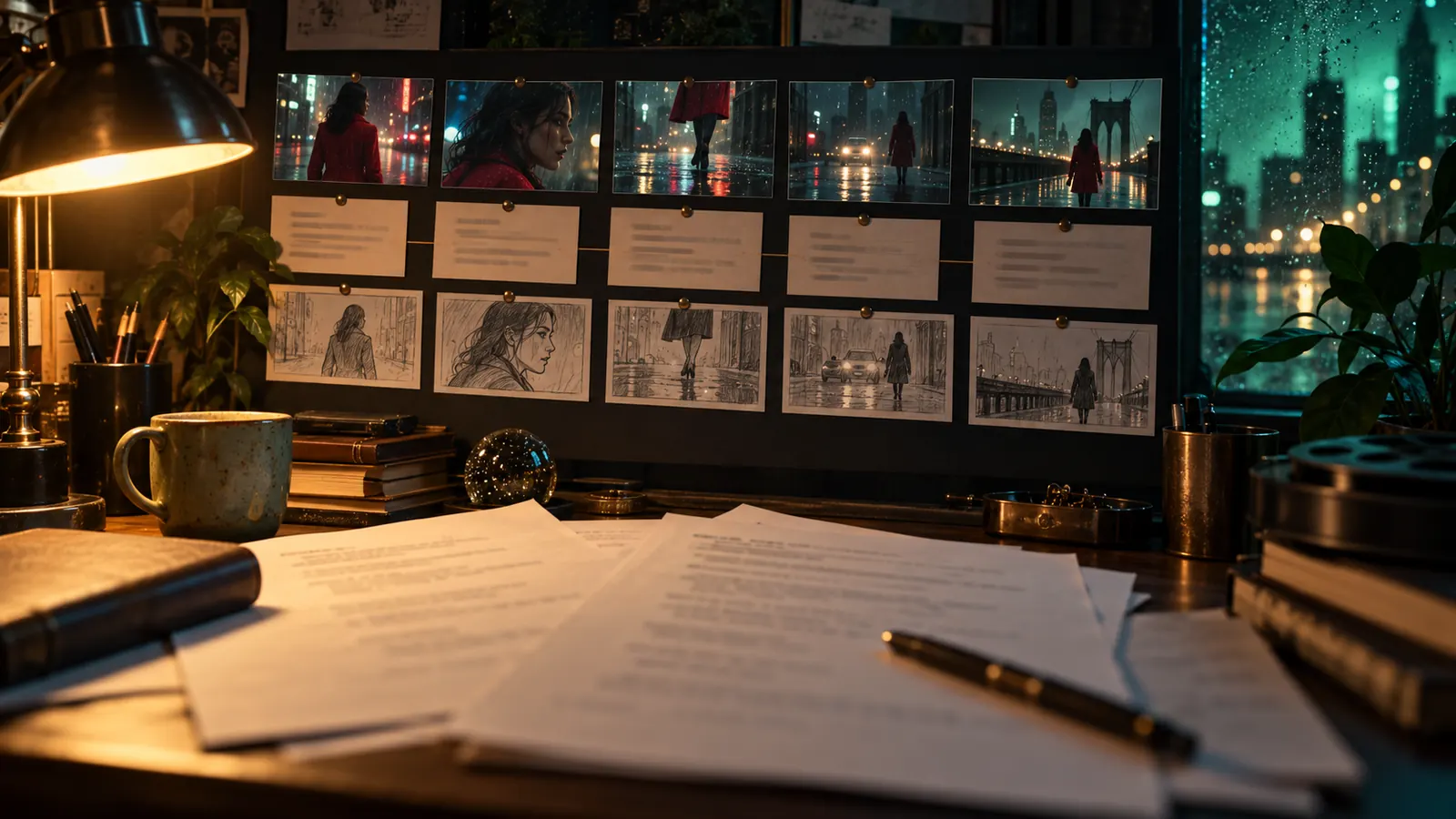
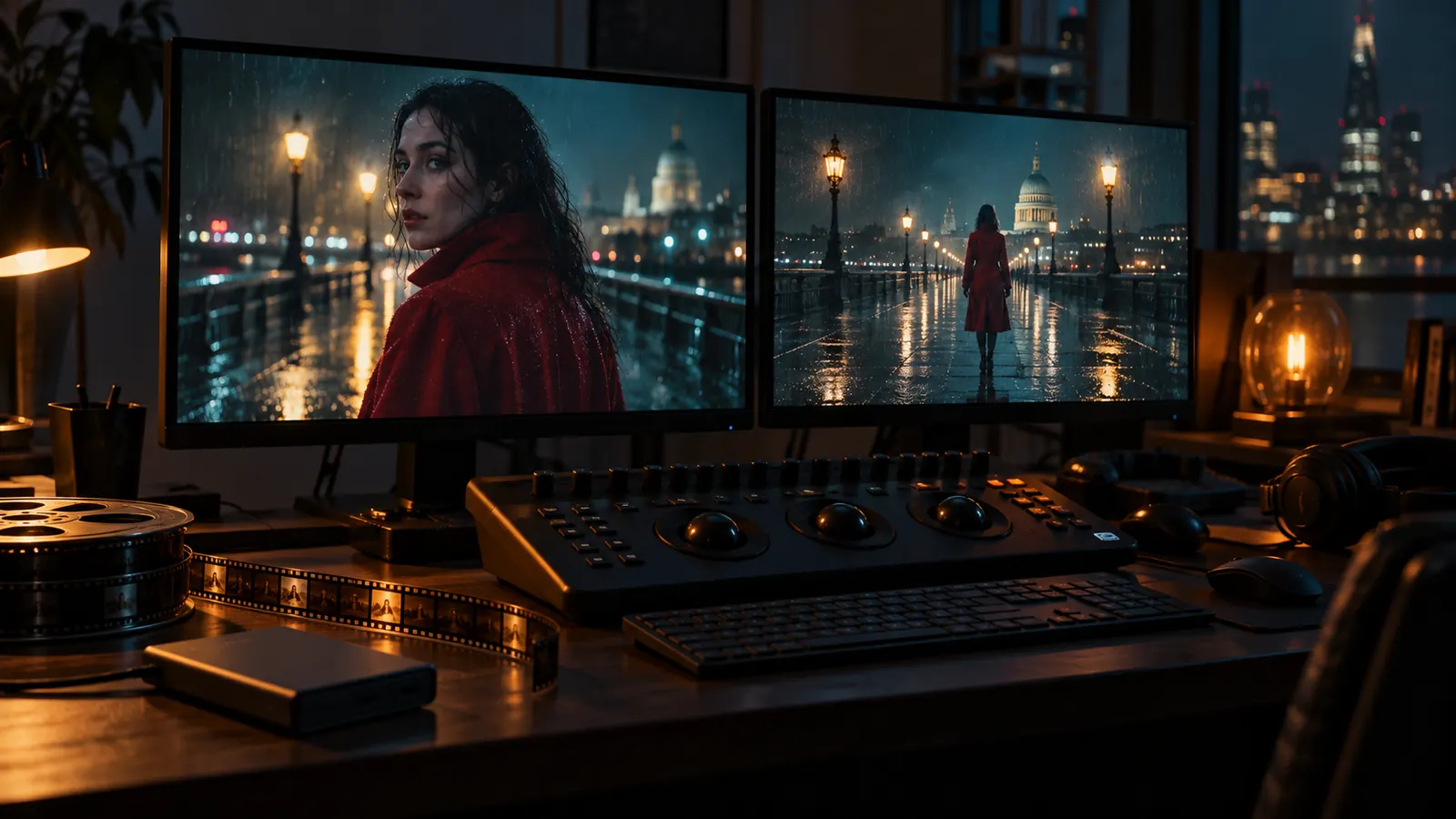
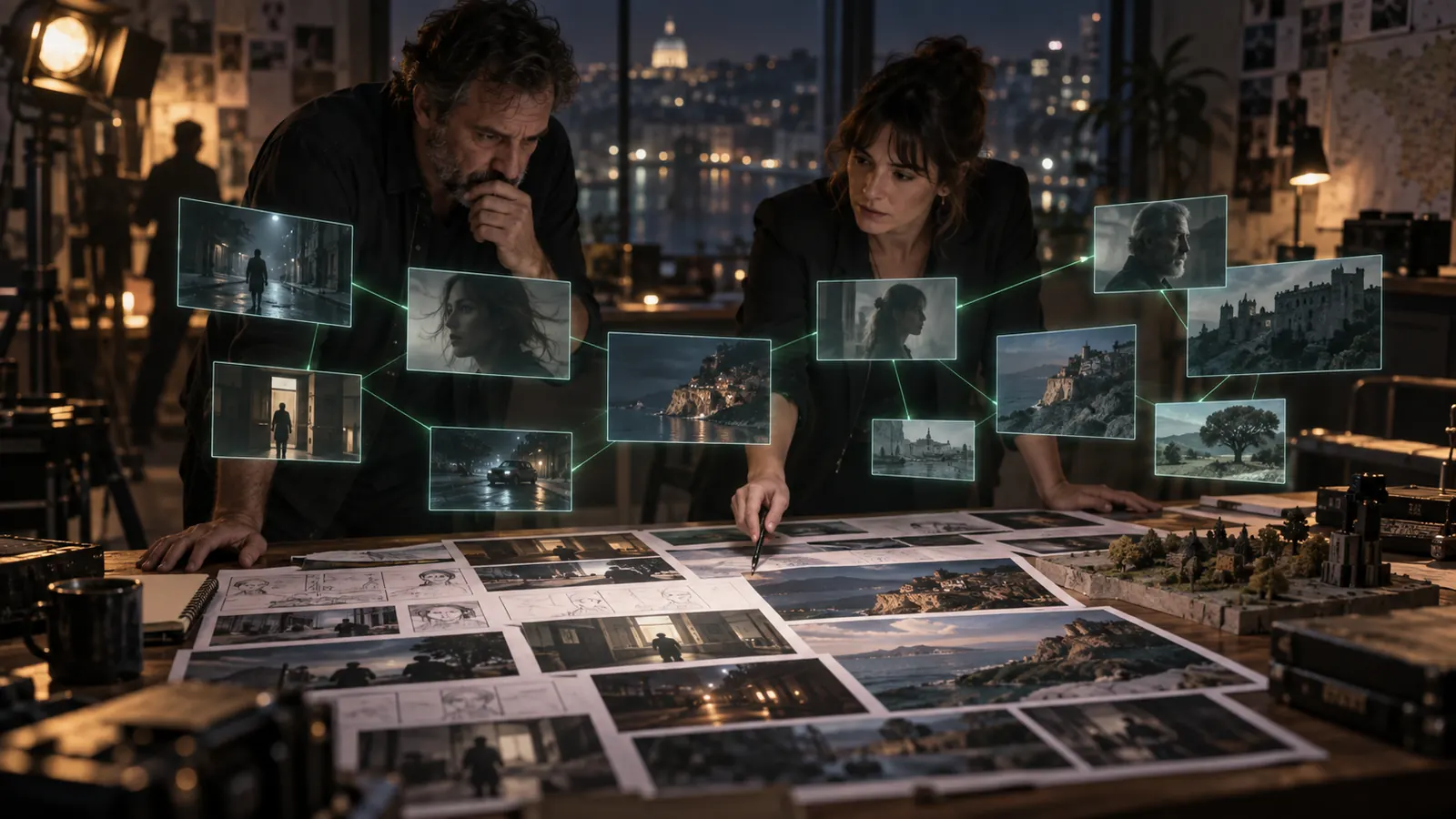
A single command center for a film, video or media production — brief, treatment, script, scenes, shots, cast, locations, assets and an AI that generates every piece along the way.

Start free
Creator Studio on screen

Shot Editor

Video from your cast and references

Render a shot as video with the characters, locations and props you mention, each carried in by its approved reference images. Most clips in Creator Studio are made this way.

Video from your cast and references

Creative

Shot Editor

See the price before you render

See the price before you render

The Shot Editor quotes the exact credit cost of an image or video from the chosen model, resolution and duration before you press Generate.

Fix one detail with a masked edit

Fix one detail with a masked edit

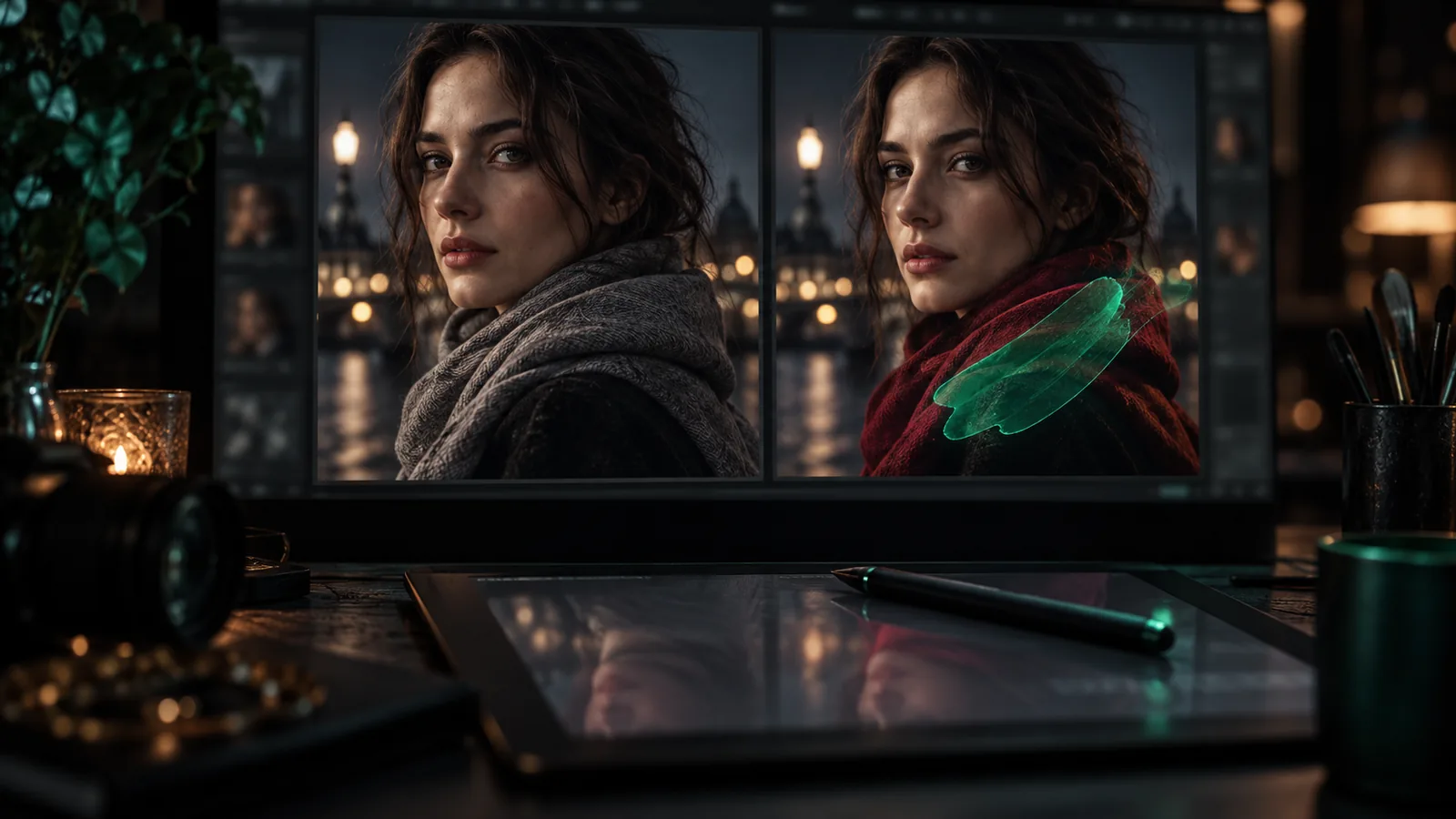
Brush over the part of a frame you want changed and describe the change; GPT Image 2.5 edits only that region and composites it back, so the rest of the frame stays.

Camera moves with preview clips

Camera moves with preview clips

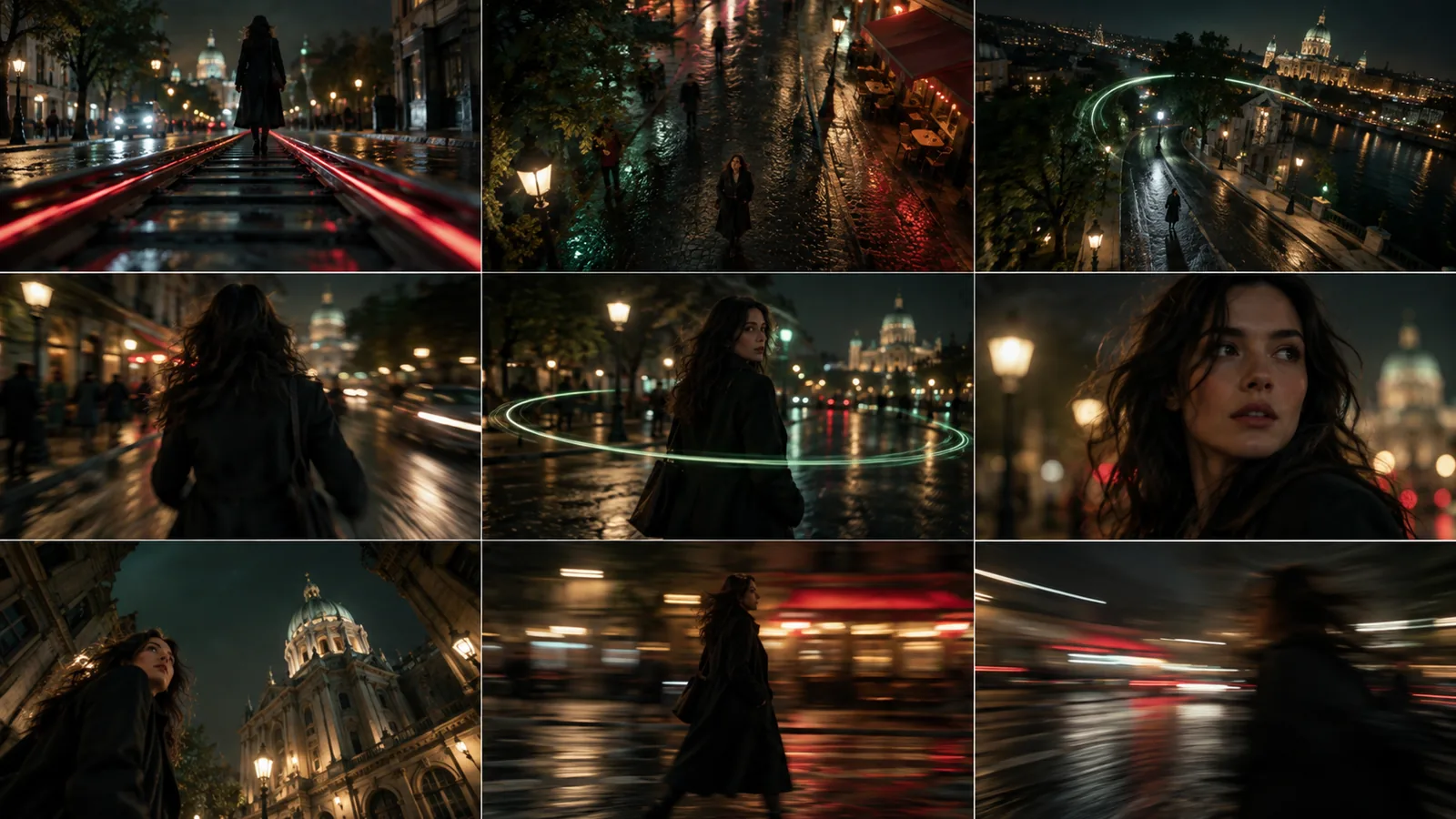
Pick from 49 camera moves (dolly, orbit, drone, FPV, speed ramps), each shown as a short preview clip, and the move is written into the video prompt.

Edit, extend and upscale a clip

Edit, extend and upscale a clip

Change an existing clip with a prompt (video-to-video), continue it with new seconds that join seamlessly, or upscale it, without starting over.

Bring your own footage into a shot

Bring your own footage into a shot

Import a clip, pick the exact frame range on a filmstrip, and use it as the shot's source for edits and continuations.

AI Fill for the shot

AI Fill for the shot

Fill the shot's prompt, breakdown and context from the scene and script with the model you choose, in your own language, then edit it.

Assets

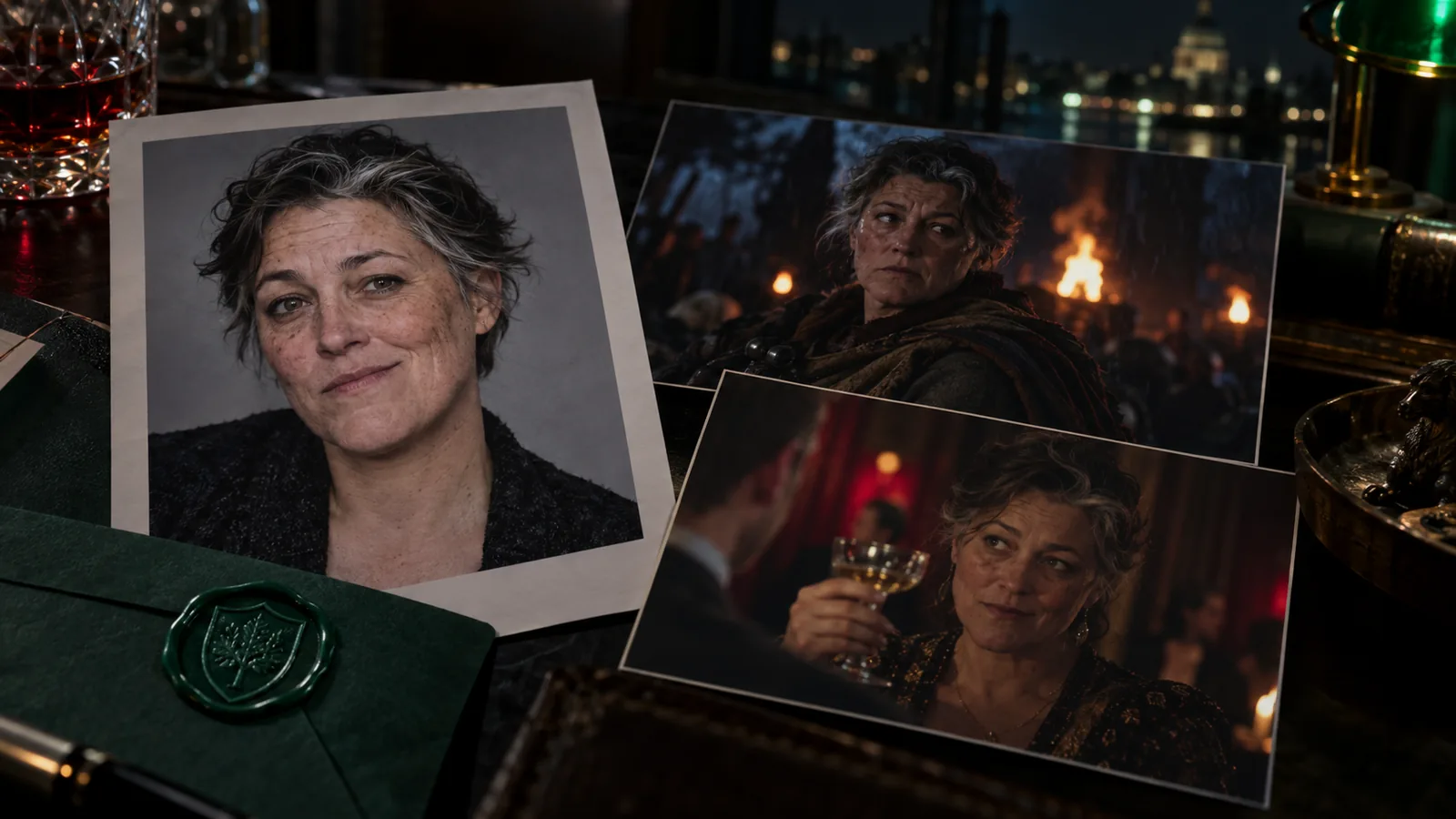
A cast that looks the same in every shot

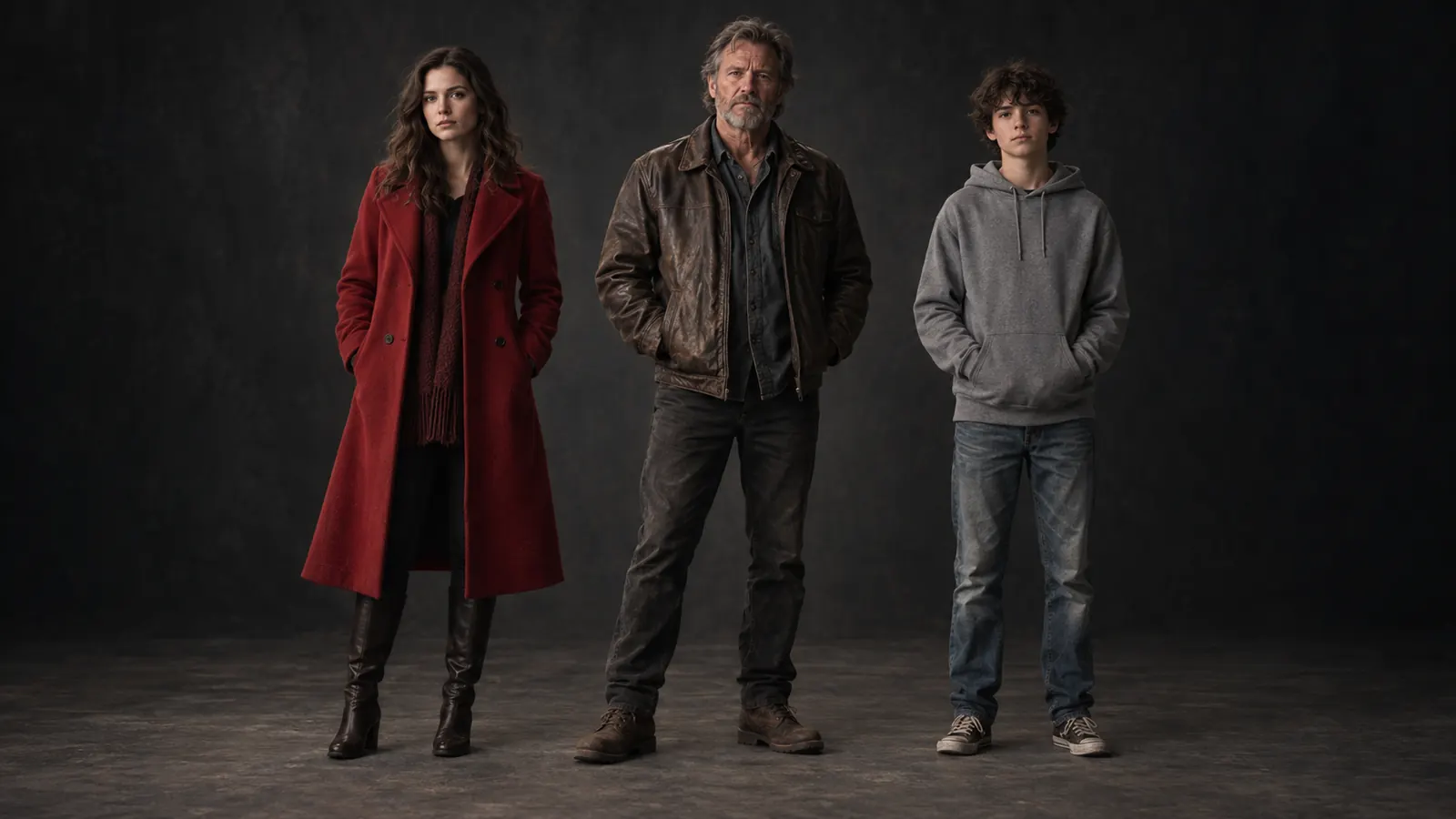
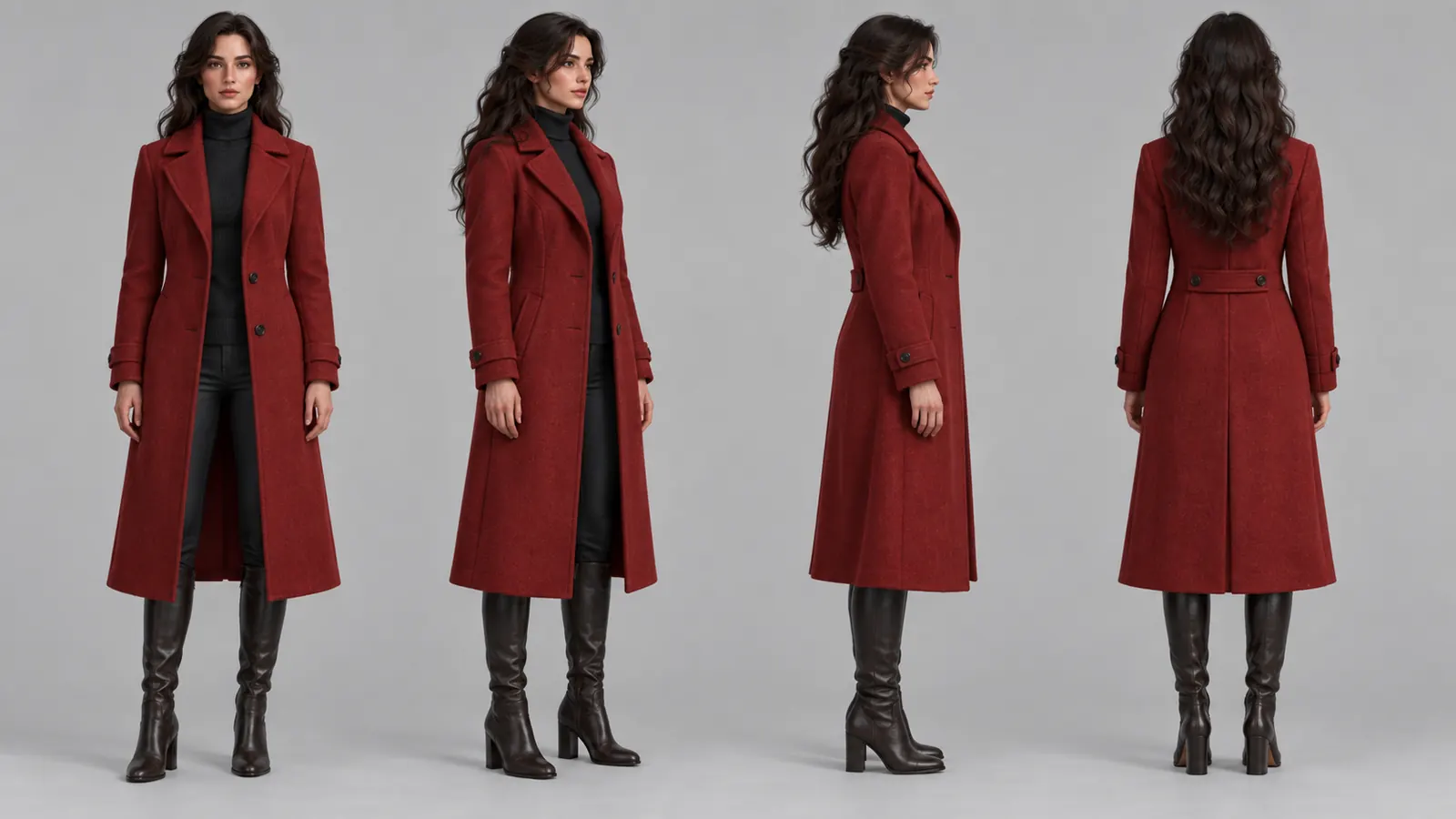
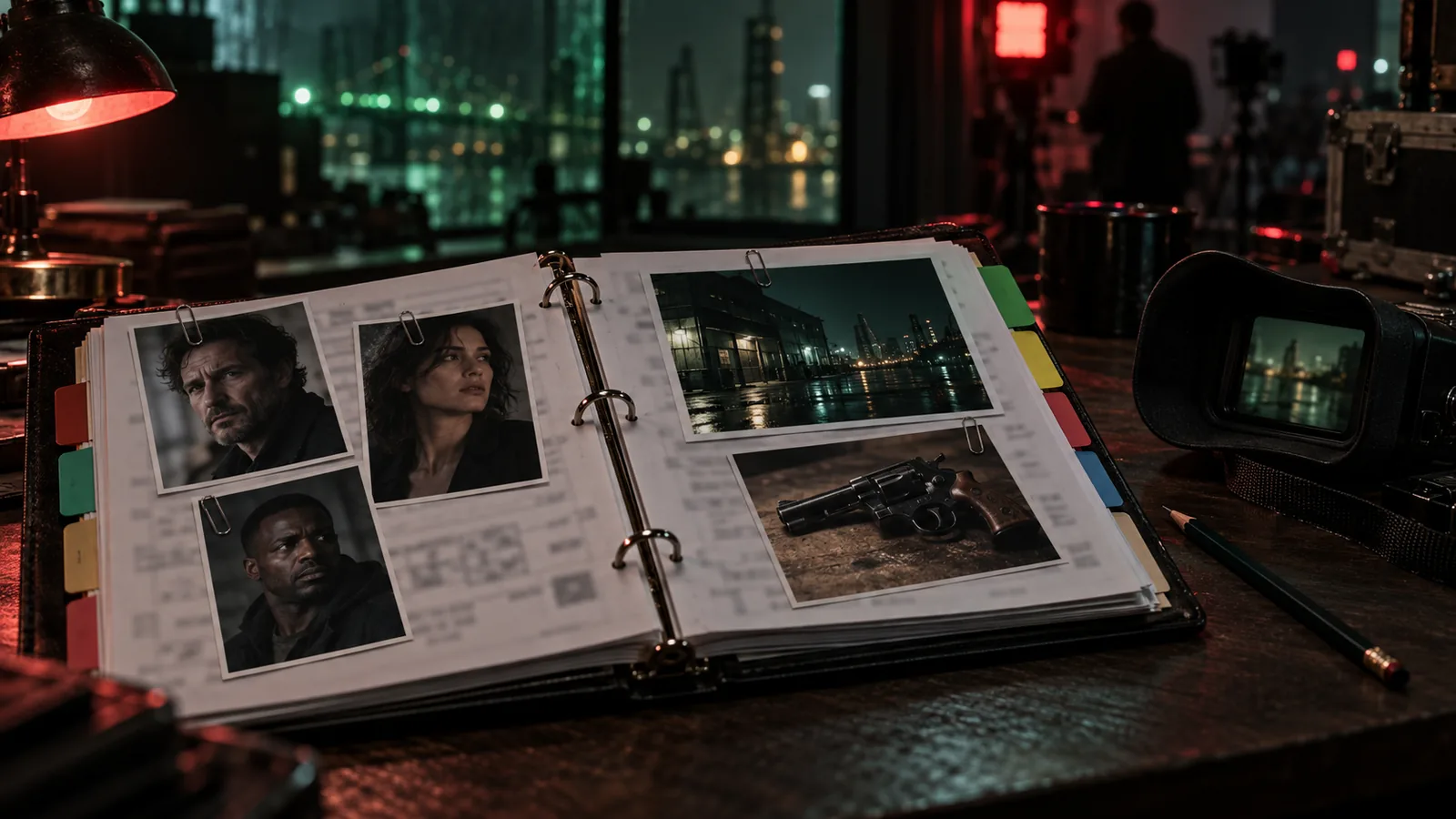
Build each character, location, costume and prop once, with reference sheets, turnarounds and viewpoints, and every frame and clip you render draws on the same approved look.

Characters
Characters. Faces, builds and costumes that stay the same from the first shot to the last.
Turnarounds
Turnarounds. Front, three-quarter, profile and back, approved before the first render.
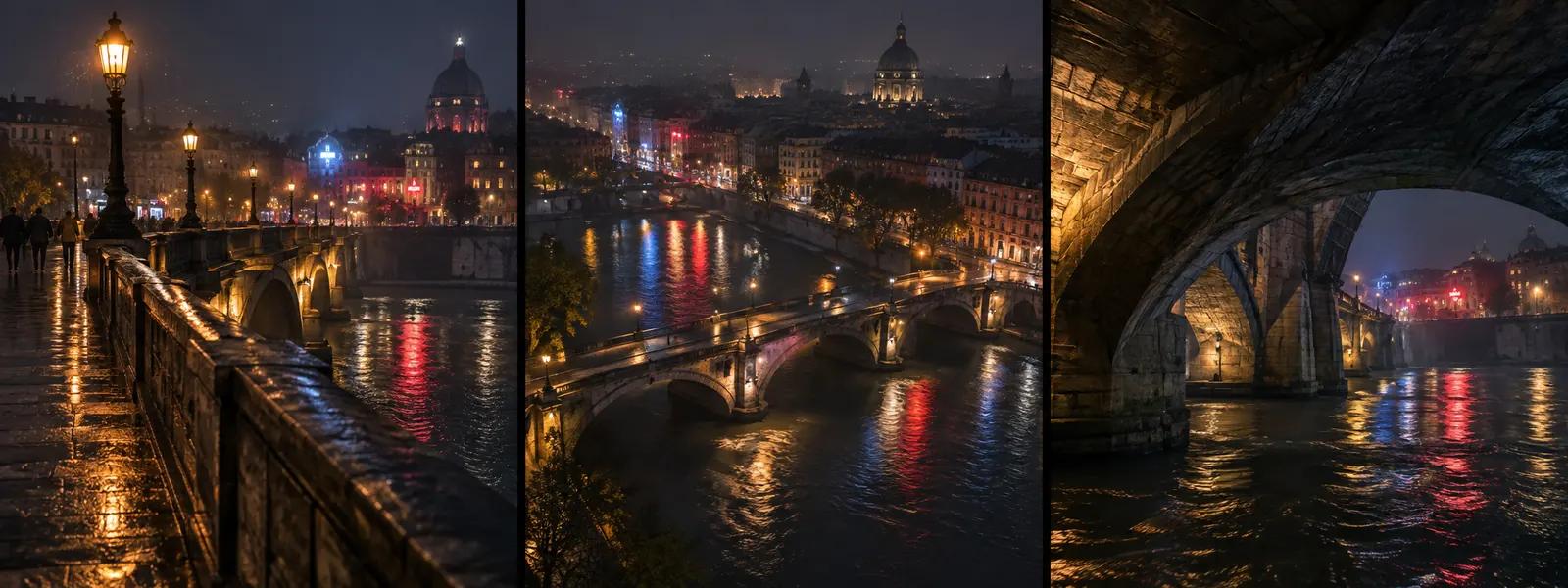
Locations with viewpoints
Locations with viewpoints. One place, saved from every angle you will shoot it.
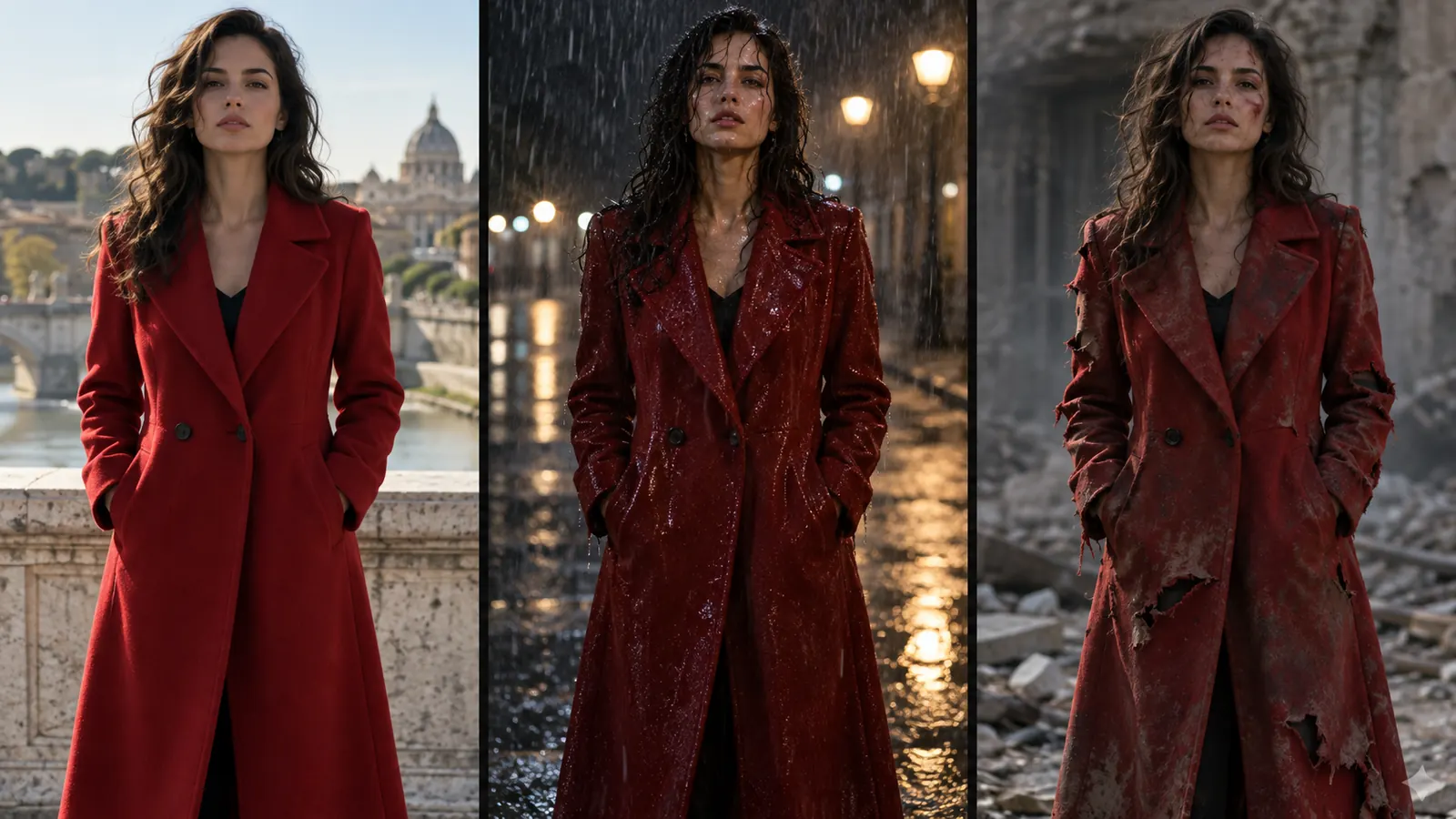
Wardrobe states
Wardrobe states. The same coat dry, soaked or torn, scene by scene.

Script

Write it, and the breakdown follows

Write in a screenplay editor with an AI co-writer, or import a structure. Creator Studio breaks the script into scenes and shots and lists the cast, locations and props they need.

Write it, and the breakdown follows

Creative

Visual Modes

AI scene direction

Let the AI propose the coverage for a scene (the shots, angles and moves) from the script and your direction dials.

Scene Editor

Open a scene to set its script, cast, location, looks, props and styles in one place, and switch between versions of the scene.

Cut versions

Keep several versions of the cut, compare them and set the active one.

Watch agents work live

Shots and renders an AI agent or a teammate creates appear on your timeline and in the open shot as they happen, without a reload.

Scene Map Editor

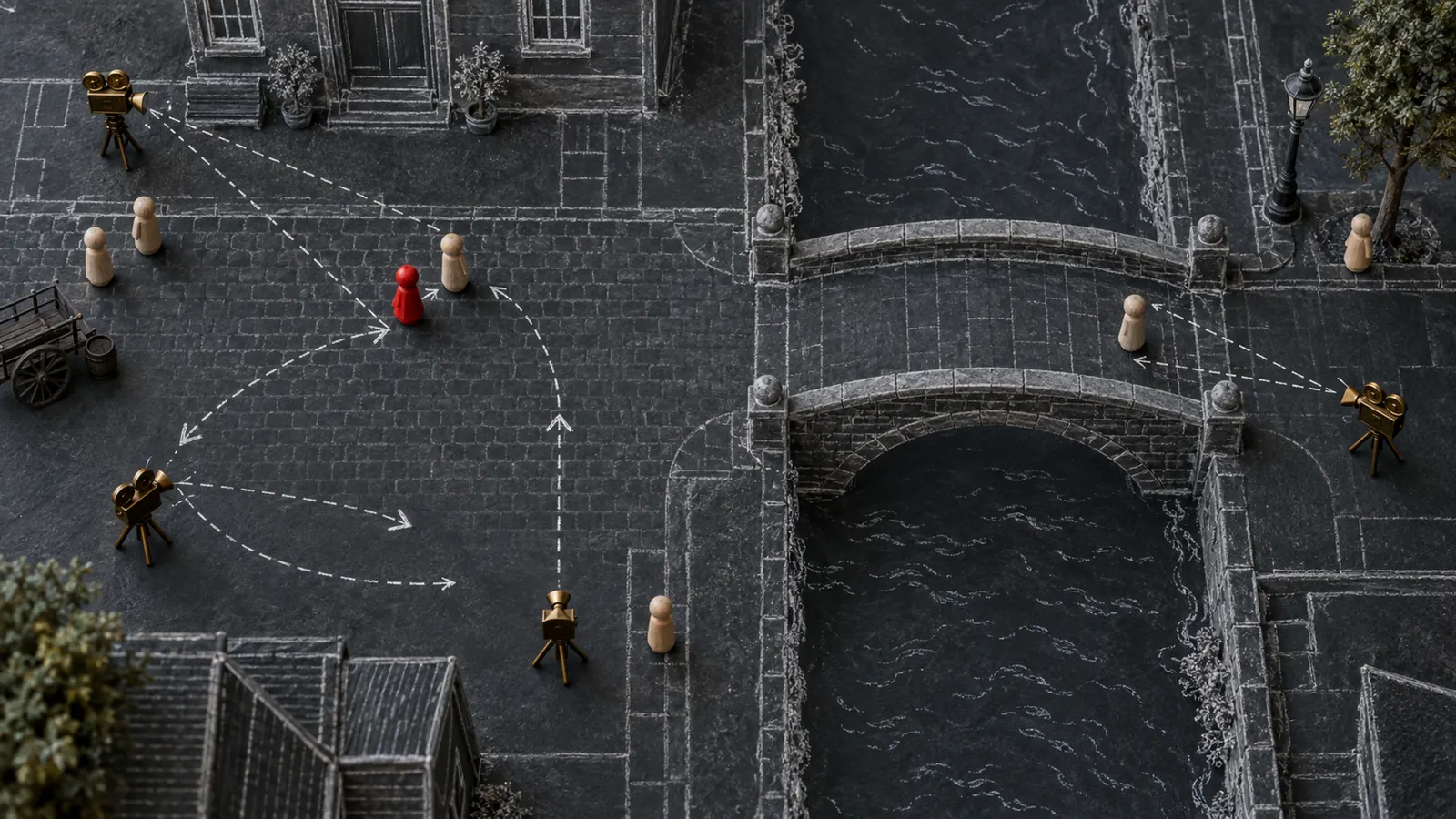
Block the scene from above by placing actors, props and cameras, and the positions feed straight into the shot prompts.

Timeline audio and mixer

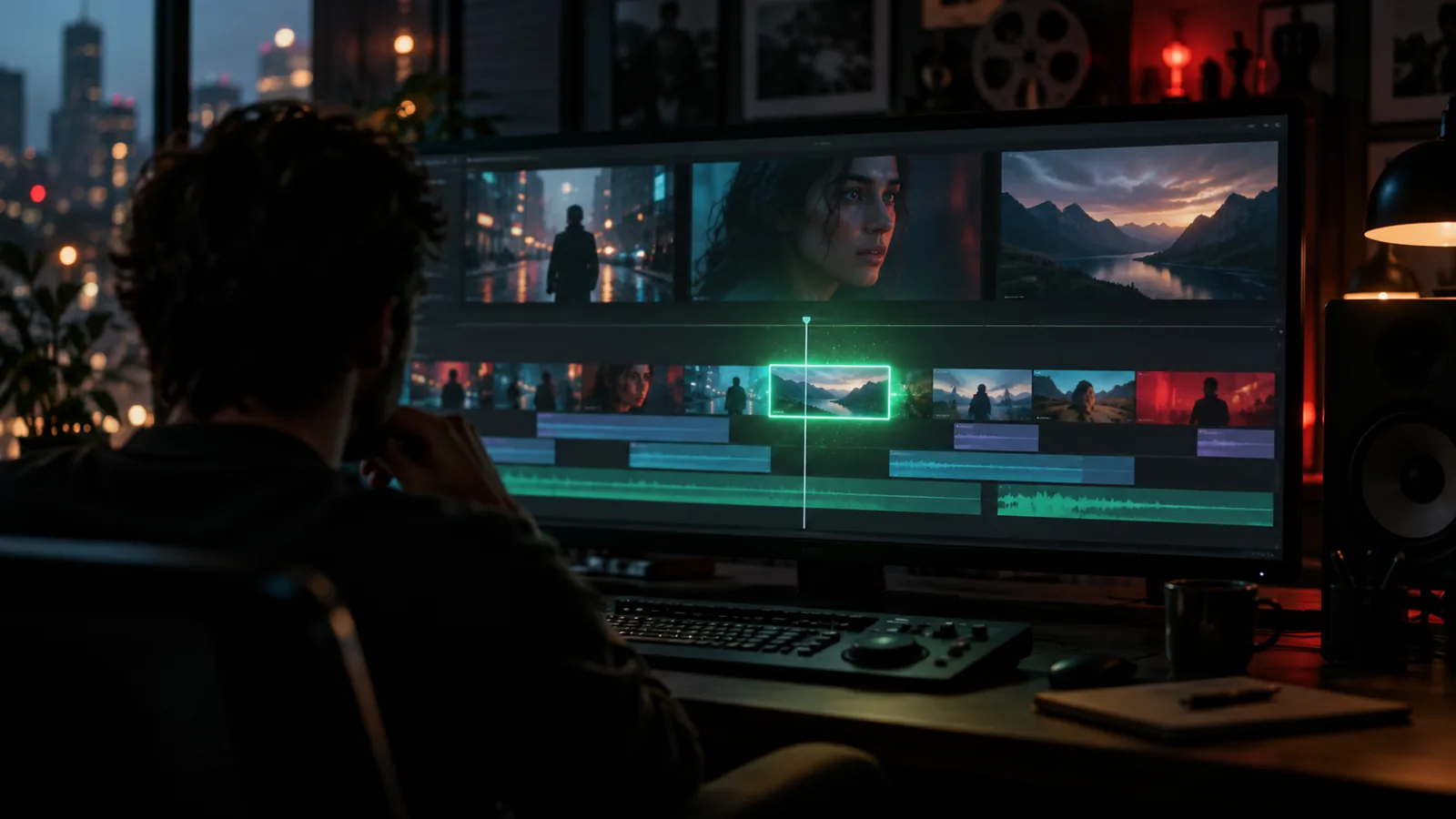
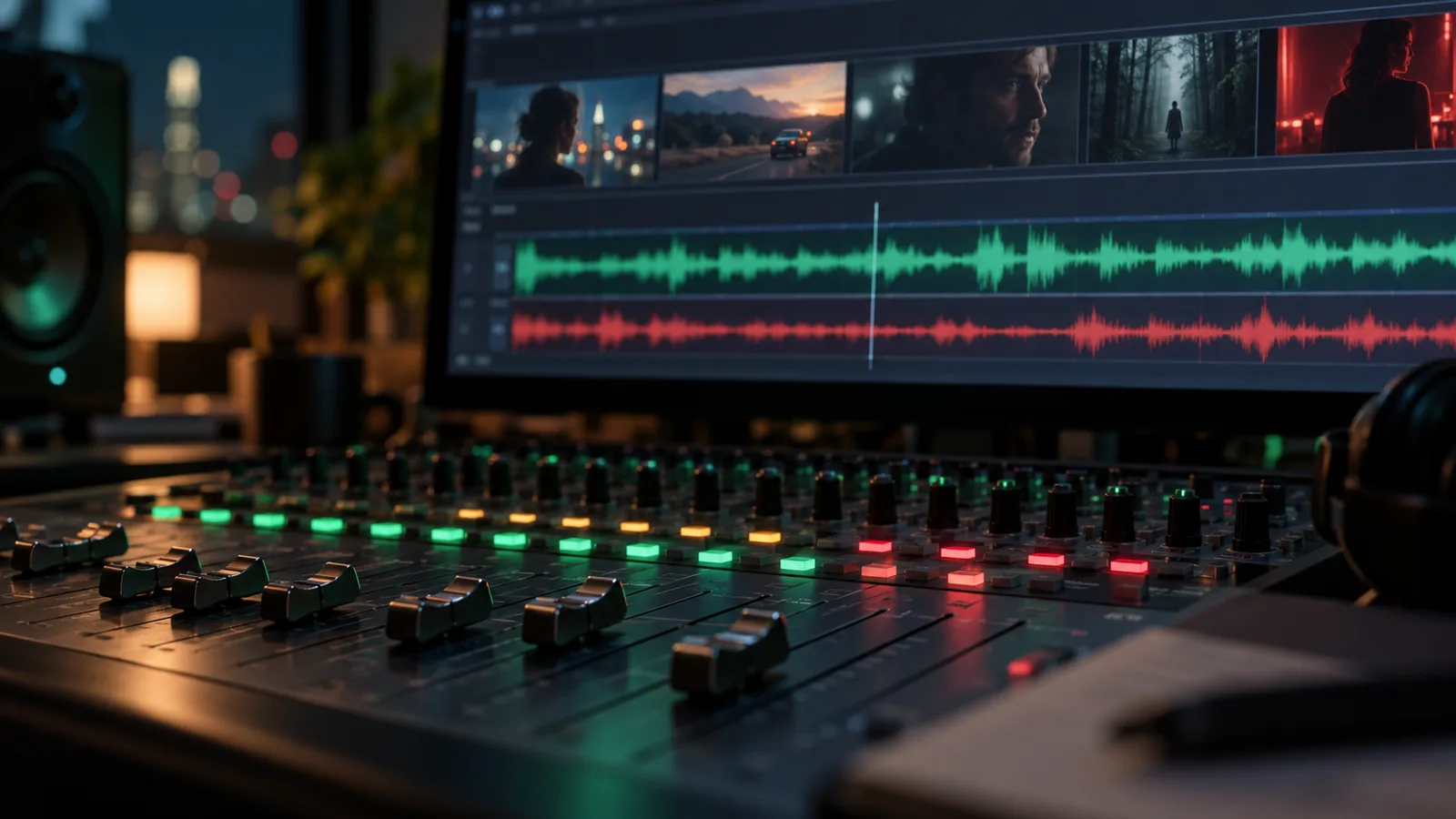
Lay music, dialogue and effects on audio tracks under the picture and balance them in a mixer.

Project Administration

Hand off to the edit

Export the cut as FCPXML for Final Cut Pro, or render it straight to a video file with scenes, shots and audio in order.

Hand off to the edit

Developer & API

An AI crew inside your project

AI agents work in the same project you do. Through 262 Creator Studio tools they update shots, queue renders, manage assets and track tasks, and every change shows up in the project.

An AI crew inside your project

All features

63 more features

Shot Editor

Shot Editor

Direct each shot with a real camera body, lens, film stock and camera move (80 cameras, 74 lenses, 49 moves), and mention your cast with @. The prompt is written for you.

Shot Editor

Multi-Shot Composition

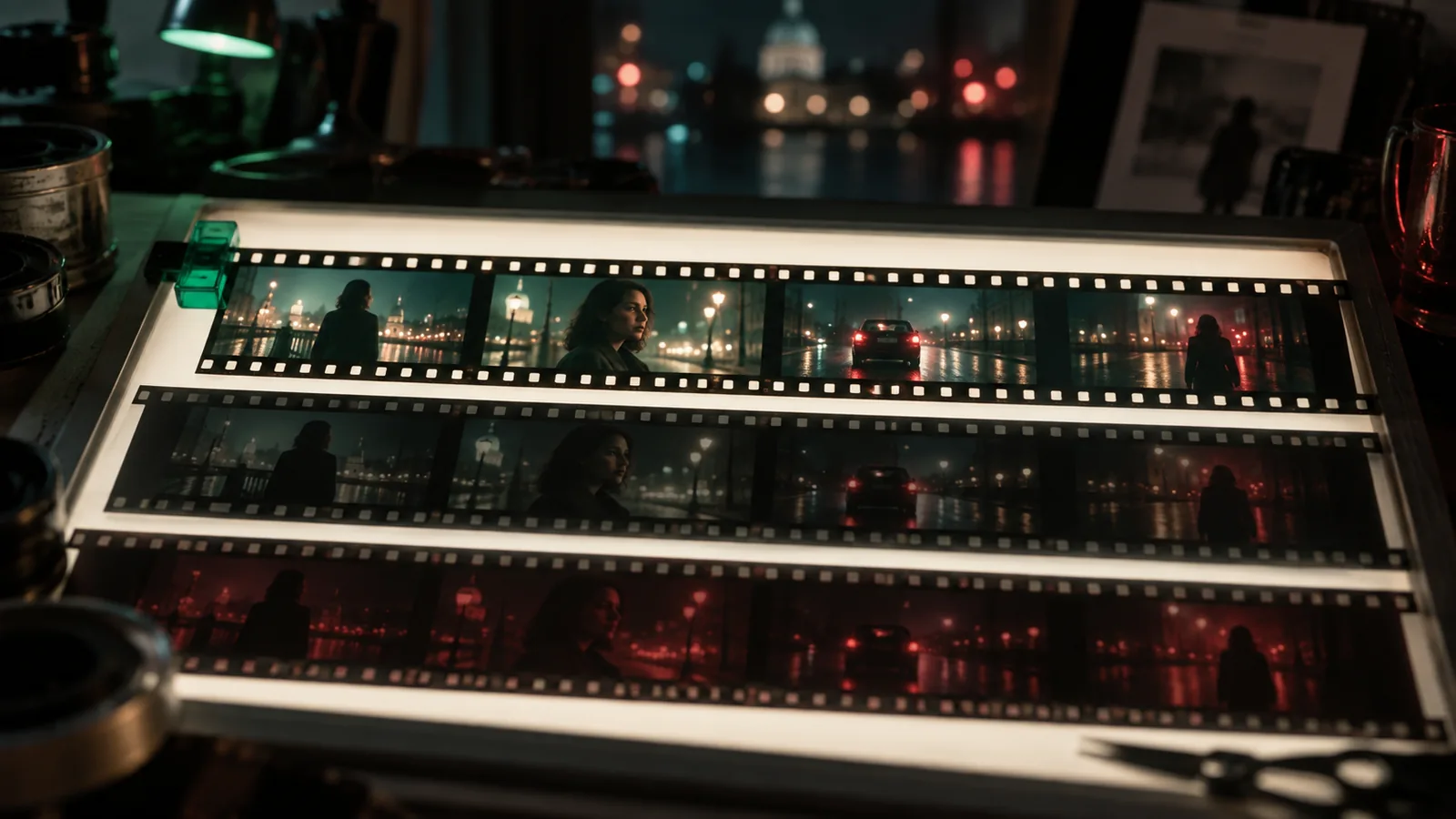
Explore a shot's coverage in one pass: 2×2 to 4×4 grids of camera angles, then keep the angle that works and upscale it.

Shot Editor

AI Image Generation

Generate storyboard frames from the shot, the cast and the project's look, with the image model you choose for each shot.

Shot Editor

Every take, one click back

Each shot keeps all its takes and versions on a version timeline, so you can compare them and restore any earlier one.

Shot Editor

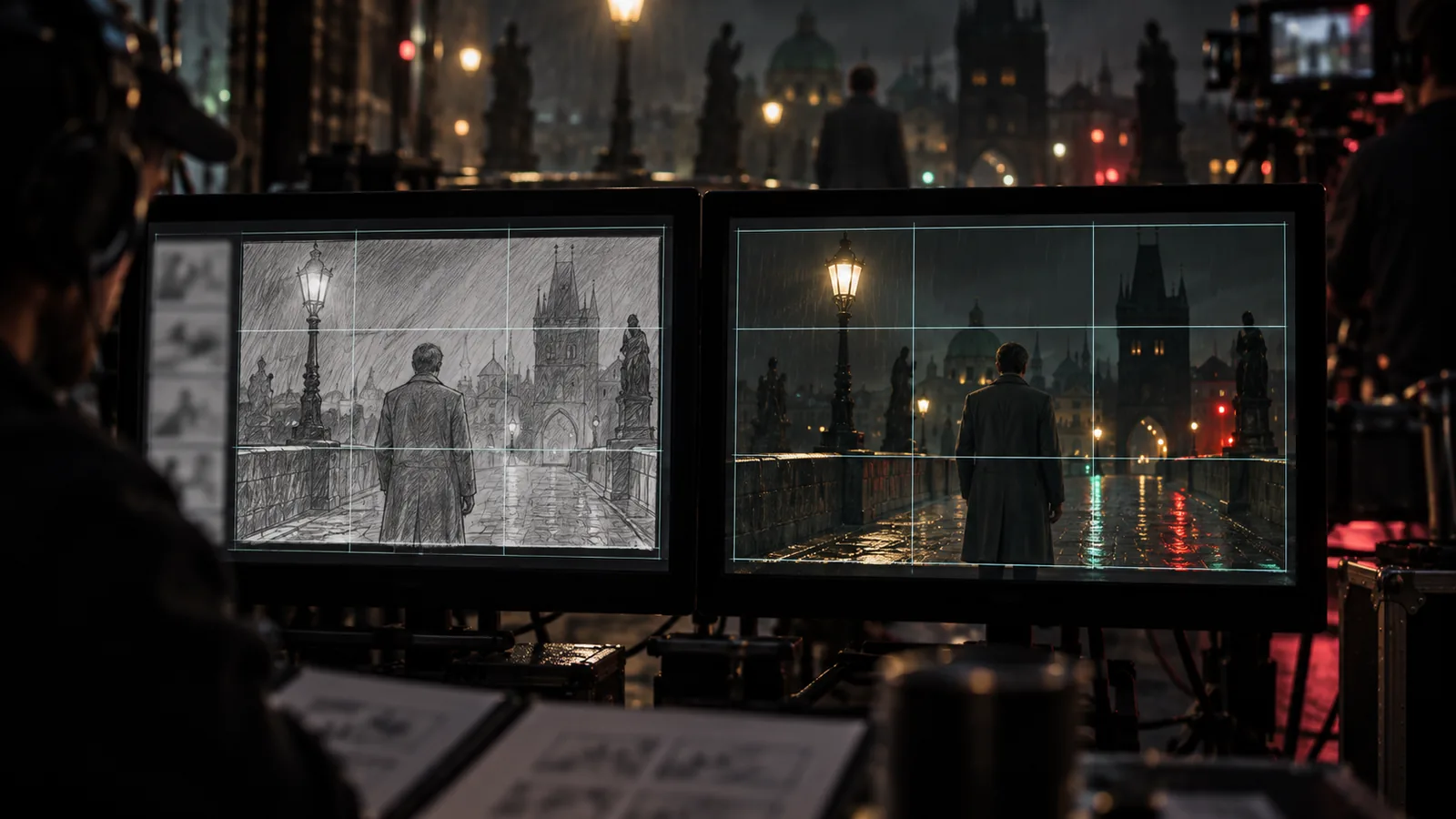
REF SHOT: keep the storyboard frame

Pin the shot's storyboard frame as the composition template, so the clip keeps its camera, angle and layout while your cast plays the scene. Use +STORYBOARD to follow a whole storyboard sheet instead.

Shot Editor

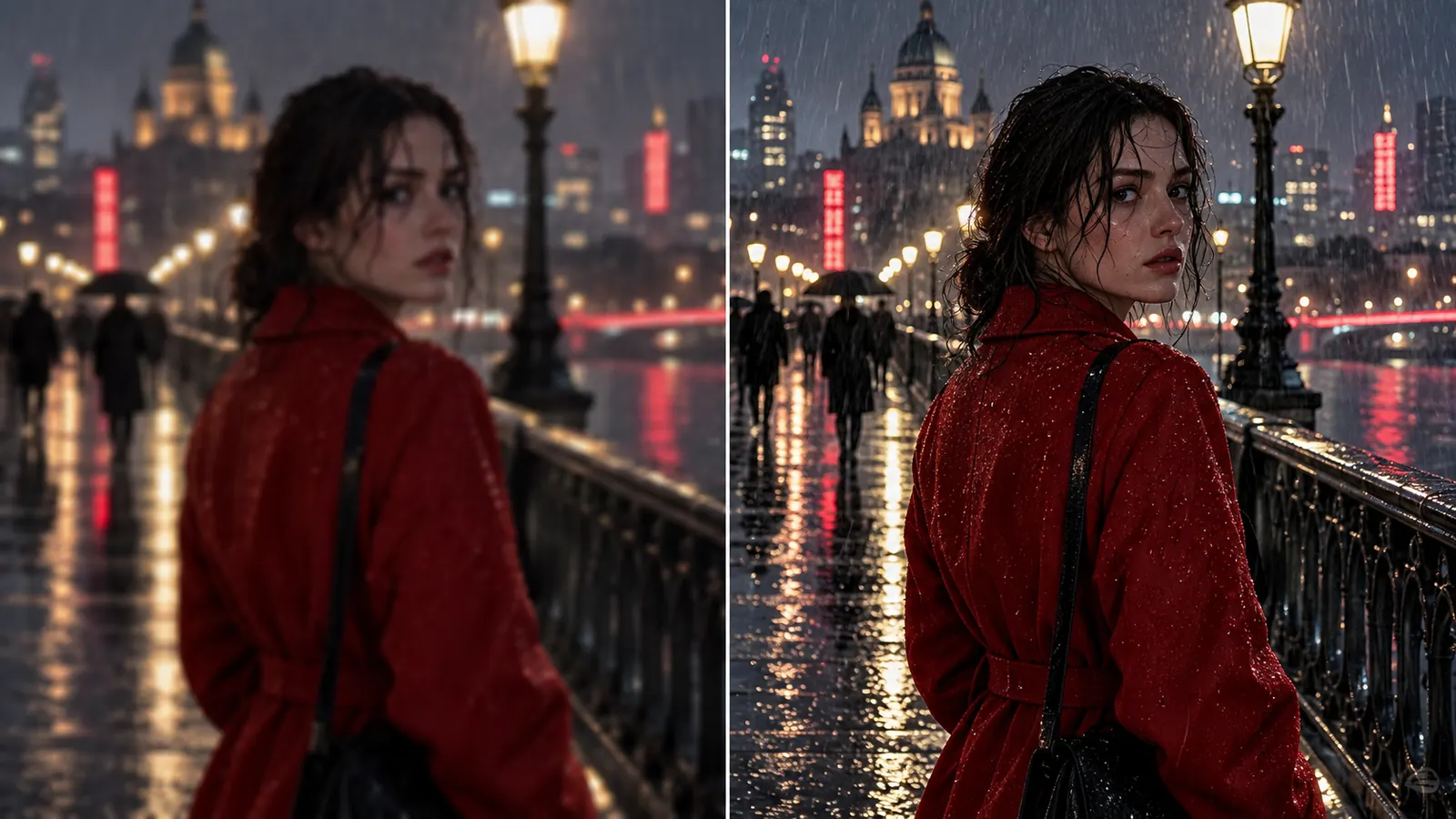
Draft at 480p, finish in 1080p

Render a quick 480p Seedance 2.5 draft to judge the motion, then turn the take you like into a 1080p final of the same picture, without re-prompting or rolling a new take.

Shot Editor

3D world from a shot

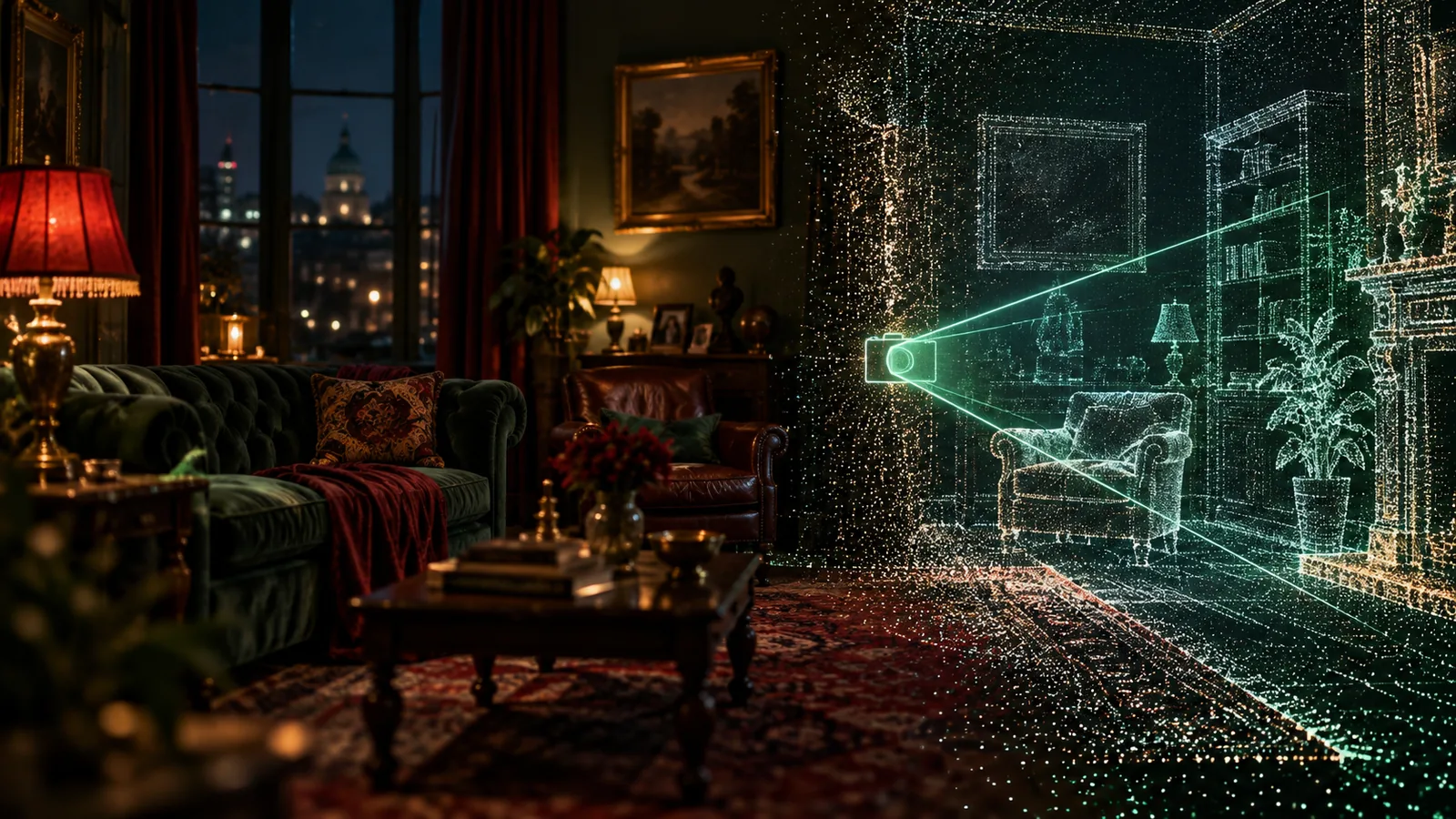
Generate an explorable 3D world from a shot's frame to find new angles in the same space.

Shot Editor

Relight, re-angle and split a frame

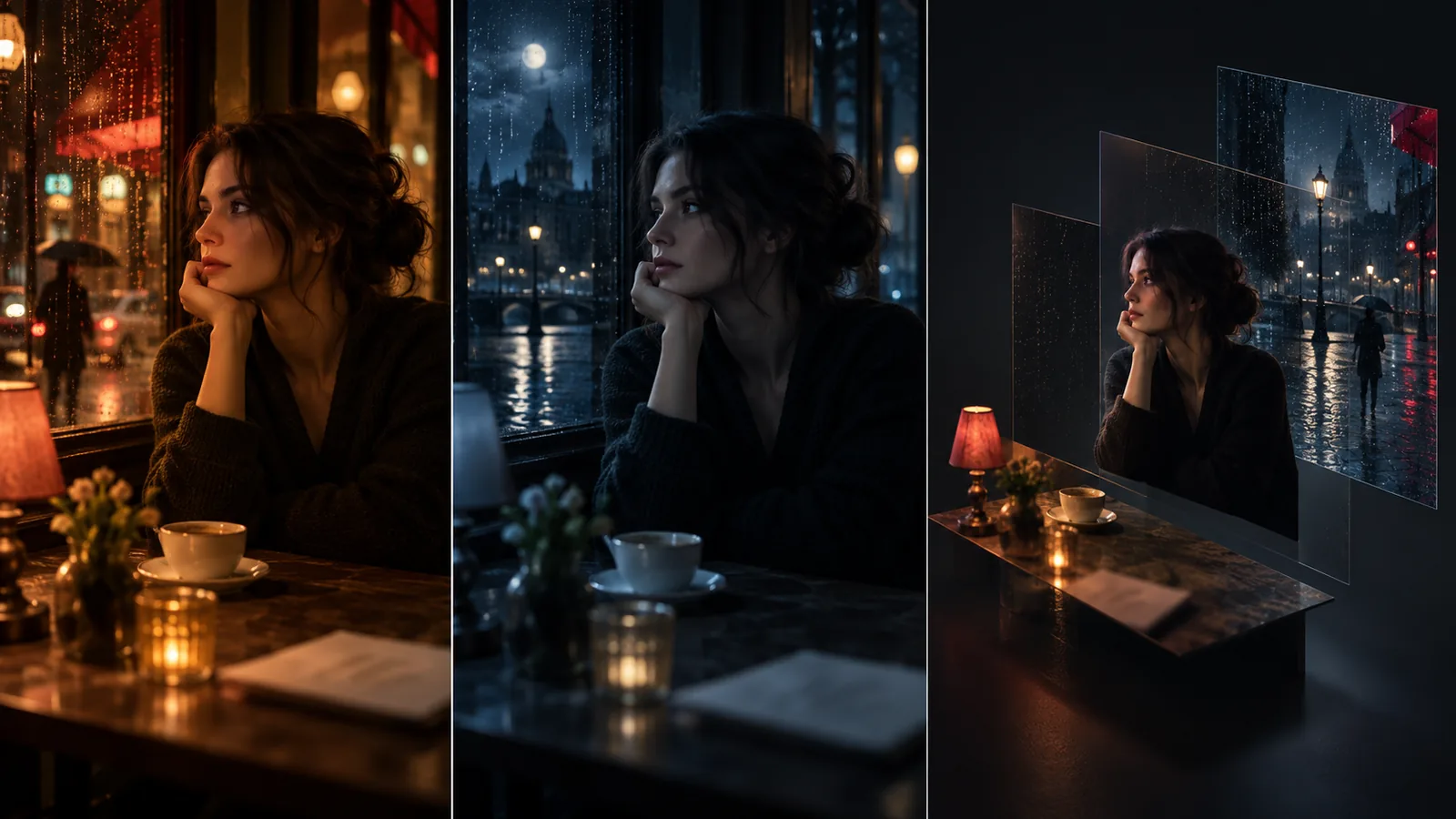
Relight a finished frame, move the camera angle, or decompose it into layers, without regenerating the shot from scratch.

Shot Editor

Dialogue, voices and sound per shot

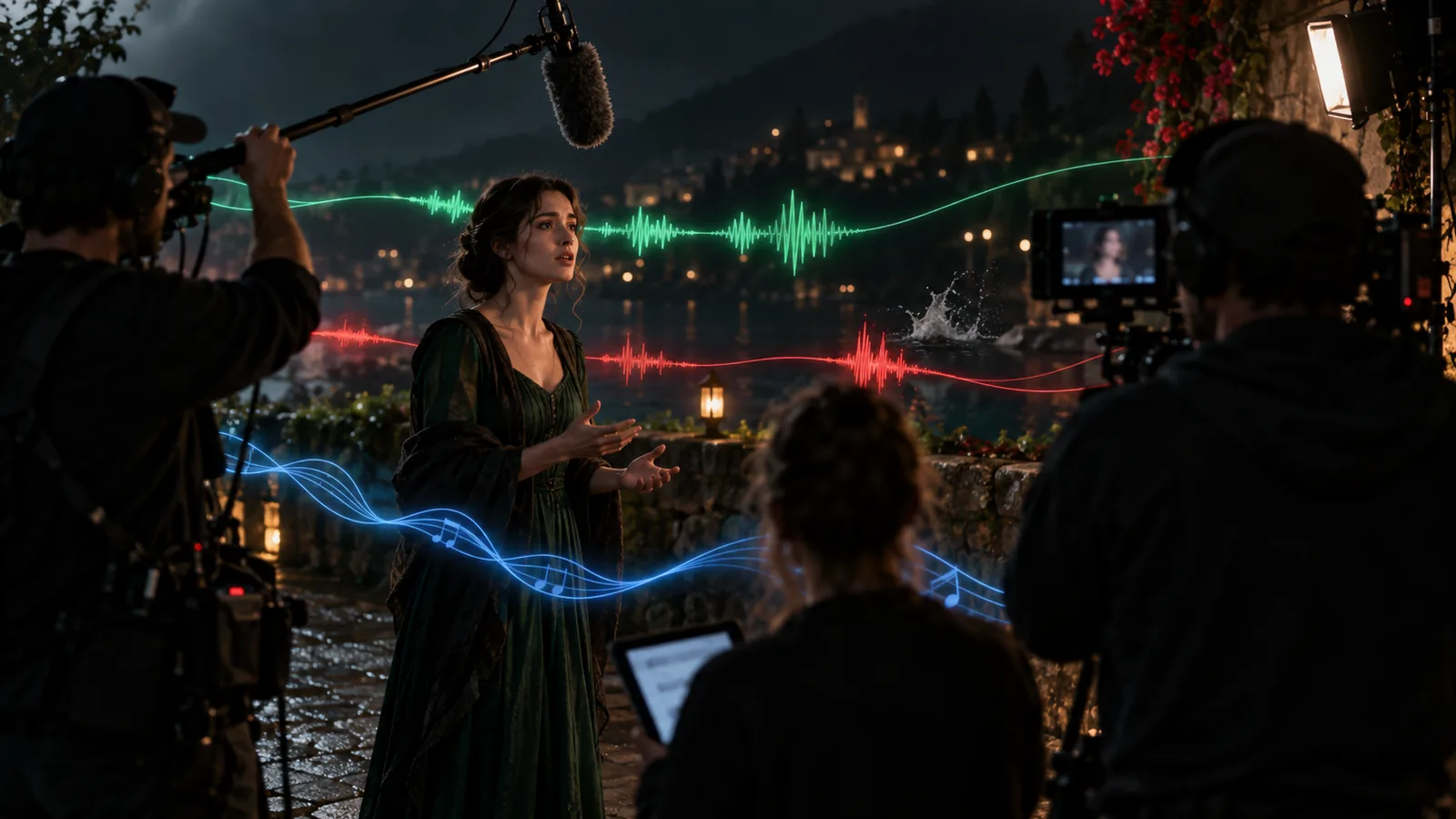
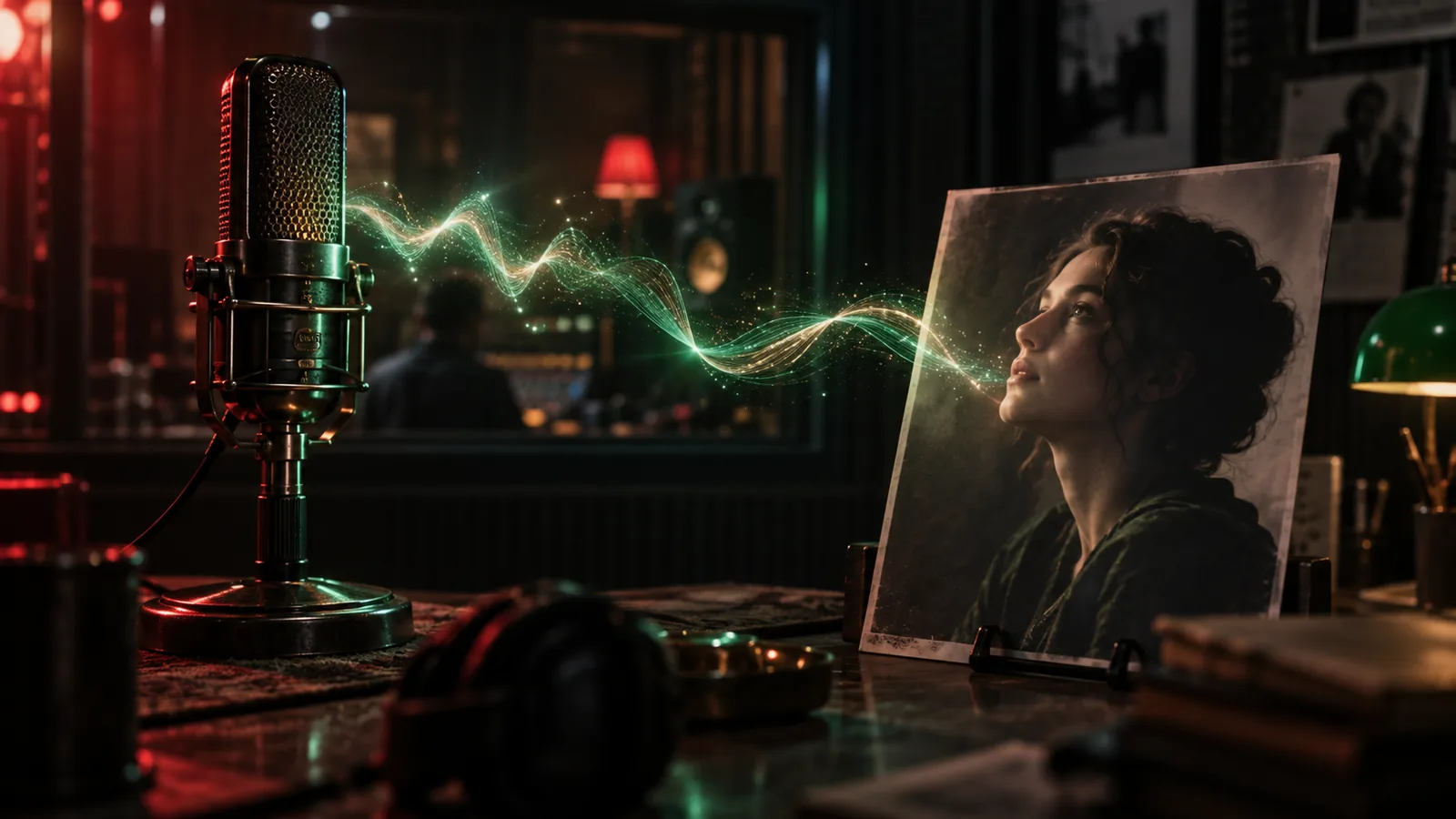
Add dialogue, sound effects and music rows to each shot, give characters a voice, and lip-sync the line to the clip.

Shot Editor

Ask the AI inside the shot

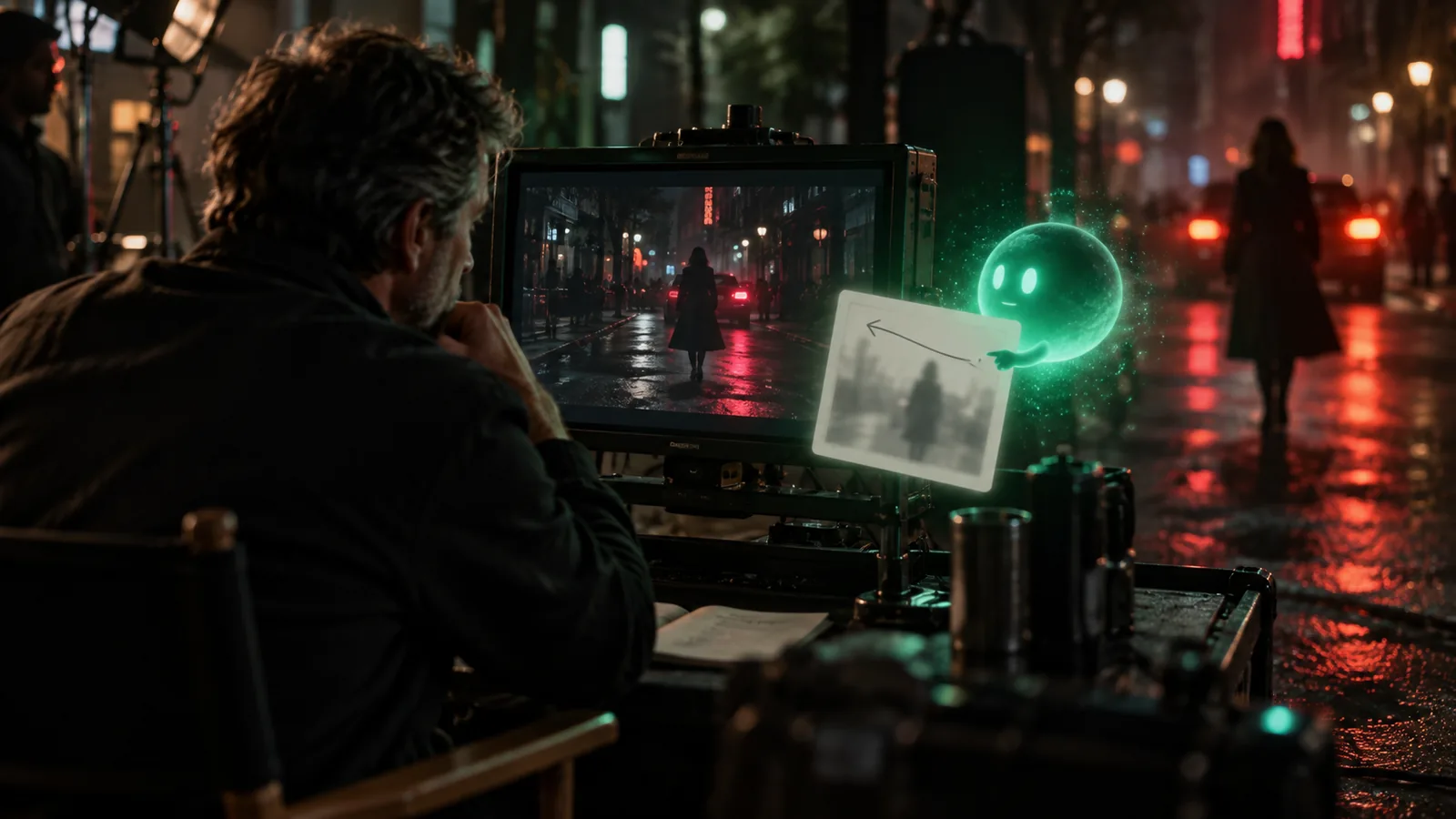
Talk to an AI assistant from inside the Shot Editor; it reads the shot, the scene and the cast and changes them for you.

Assets

Real actors, verified faces

Cast a real person: after consent (KYC) their face is registered as a verified identity, so the video model accepts it and keeps it consistent across shots.

Assets

Locations

Scout with map search, then save the viewpoints you will shoot from. Every scene set there reuses the same place and angles.

Assets

Wardrobe

Dress each character scene by scene, including states like wet, torn or evening wear, and source real items; the renders follow the costume you set.

Assets

Asset Concept Sheets

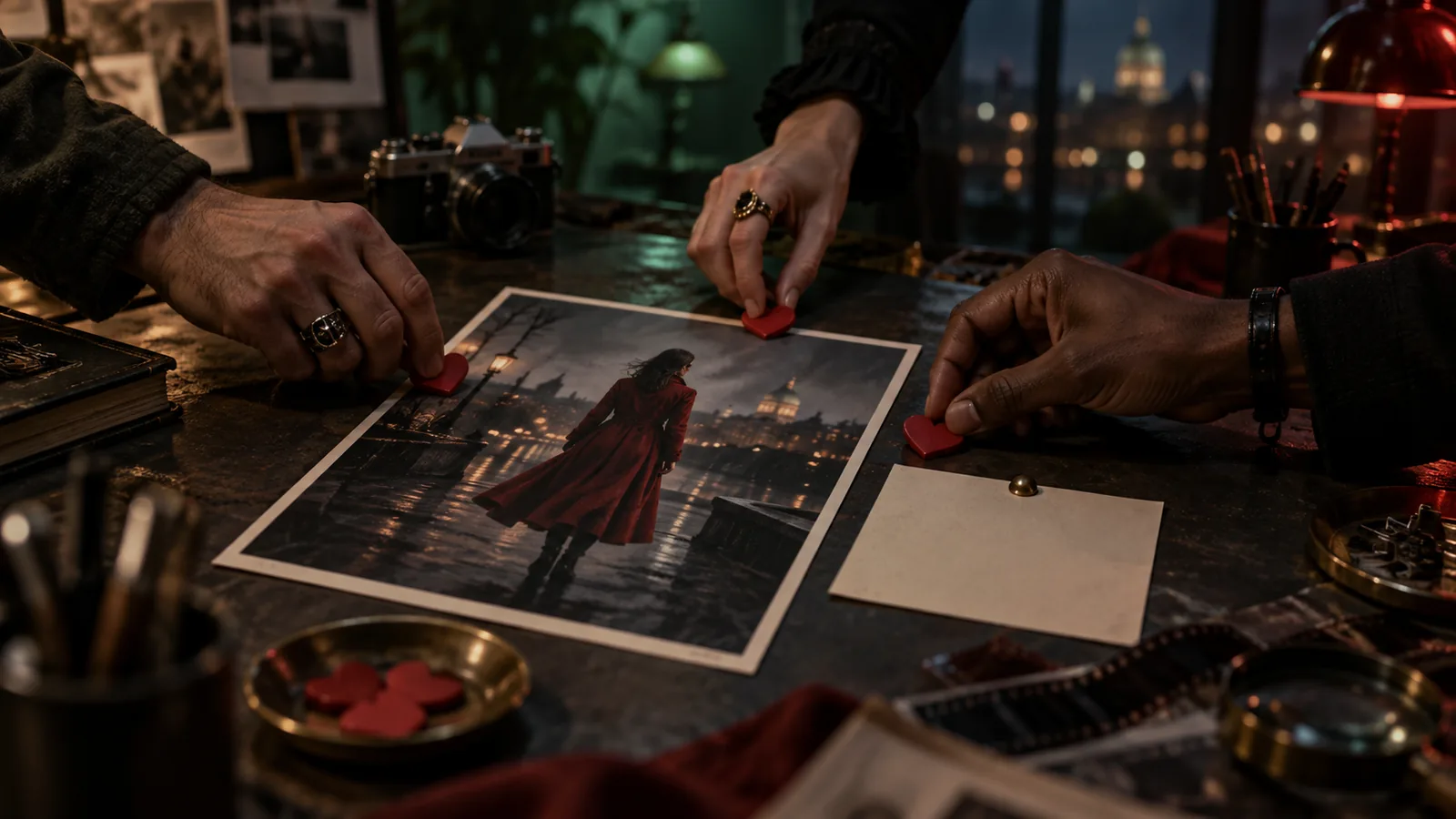
Compare several takes on a character, location or prop side by side, refine one area with the mask brush, and approve one before it goes into shots.

Assets

Unified Asset Library

Every generated and uploaded image, clip and track in one library, with draft and final status and a picker that works anywhere in the project.

Assets

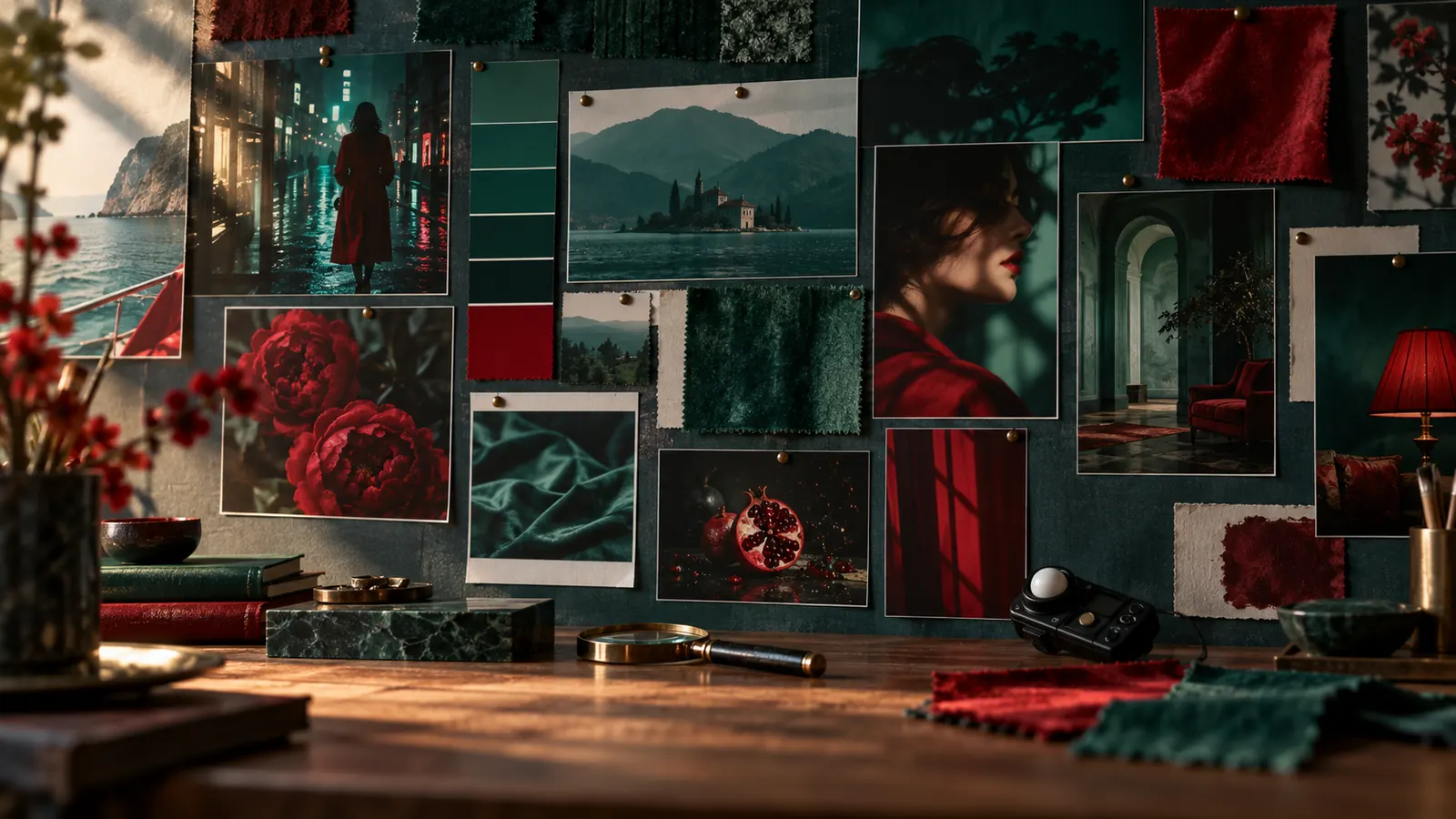
Project Style References

Set the project's look once with reference images, a palette and a short description, and it steers every generated frame and clip.

Assets

Props

Keep every prop with its references and generated variations, ready to mention in any shot.

Assets

Team likes and comments on assets

Like the takes you want, filter the library by who liked what, and leave comments on any asset.

Assets

Documentation sheets with real dimensions

Generate clean reference sheets for props and sets with their real-world measurements, so scale holds between shots.

Assets

Work from a local folder

Bind a folder on your disk and Creator Studio reads project media from it, with dots showing what is already cached on this device.

Assets

Character voices

Assign each character a voice, preview it, or clone one, and the same voice speaks every line.

Assets

LookBook

Curate reference collections that pin down each character's style, and share them with a public link.

Assets

Asset collections

Group assets into collections, share a collection by link, or promote it to the organisation library.

Assets

Audio library

Keep the project's dialogue phrases, music and sound effects in one shelf, trim them and drop them onto shots or the timeline.

Script

Script breakdown into scenes, shots and cast

Creator Studio reads the script and lists the scenes, shots, characters, locations and props it needs, ready to build.

Script

Treatment

Shape the story as a treatment with tone, beats, a bible and a poster, keep versions, and share it on a public page.

Script

AI Script Generator

Draft a full screenplay or a single scene from your brief, then get a critique of structure and pacing before you rewrite.

Script

Script History & Snapshots

Snapshot the script at any point and go back to an earlier draft.

Script

Storyboard the treatment

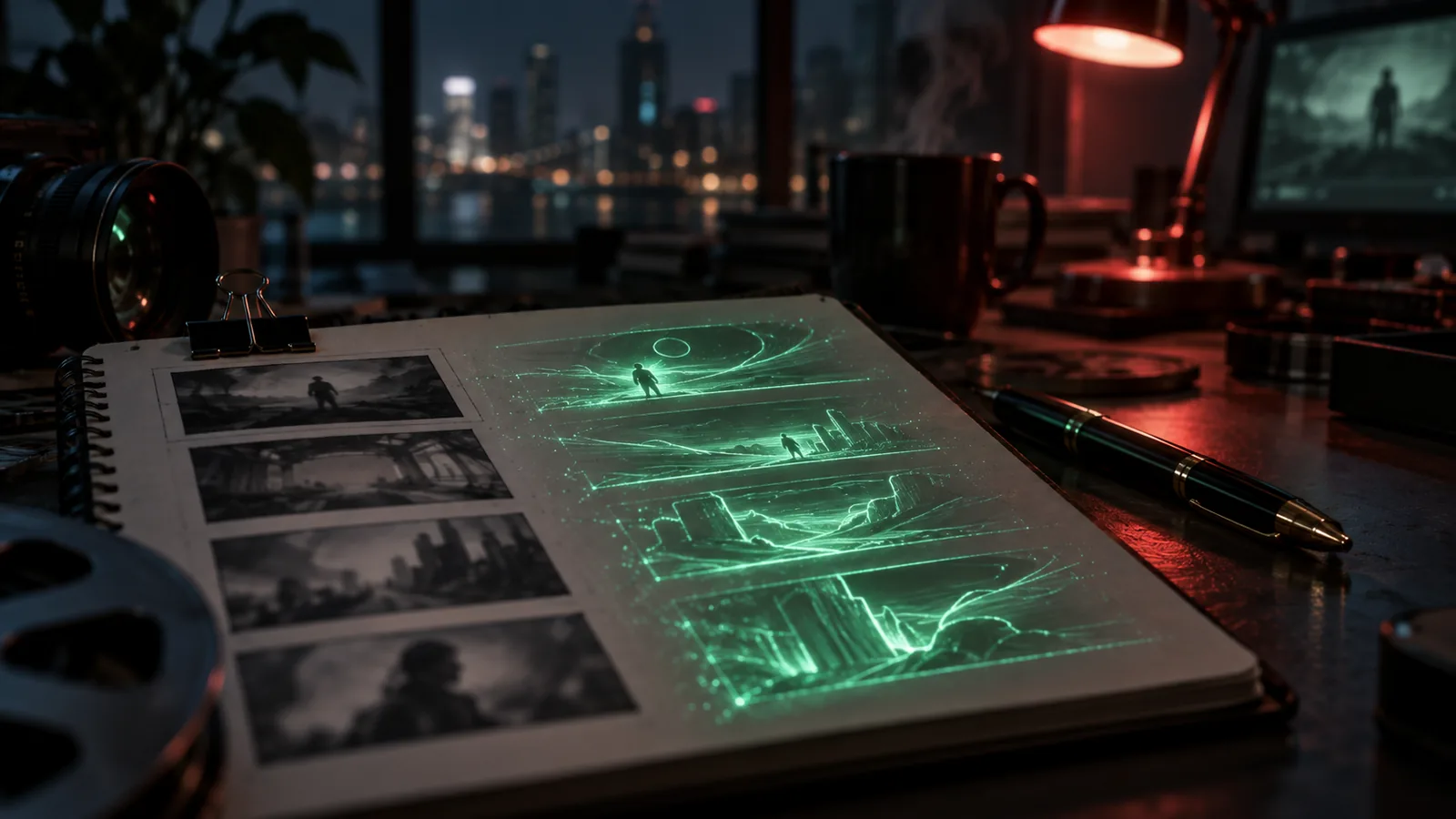
Turn treatment beats into storyboard grids before a single shot exists.

Script

Series canon, season outline and episode bible

For a series, generate the canon, a season outline and an episode bible that every script follows.

Visual Modes

Scene Timeline

See the whole film as scenes and shots on one timeline, with every take and version of a shot a click away.

Visual Modes

Scenes view

A compact scene grid for building out shots quickly and moving scenes between episodes.

Visual Modes

Storyboard book with a public link

Page through an episode as a storyboard book and share it with anyone by link.

Visual Modes

Clapperboard View

Shot cards laid out like production slates, for a quick read of the coverage.

Brief

AI Project Brief

Answer a guided brief covering story, characters, brand, product, look and sound, and every later step starts from it.

Brief

Reference boards

Collect references on boards, import them from a URL or the Research Magazine, and send a selection to the client.

Brief

Find related works

Get films, series and ads comparable to your brief or treatment, as references for tone and pitch.

Brief

Brief moodboard and music references

Collect visual and music references in the brief and let the AI analyse the mood before anything is generated.

Brain

Brain Graph Workspace

See the production as one connected map of characters, scenes, locations, documents and budget, and ask the AI co-author to make changes across it.

Brain

Project memory for your AI crew

Everything in the project (script, brief, documents, decisions) is indexed, so agents answer and act with the full project context.

Music

Music for the project

Analyse reference tracks, then generate a score or a song with lyrics for the project.

Batch Operations

Batch Asset Generation

Generate reference images for many characters, costumes, props and locations in one pass.

Batch Operations

Batch Image Generation

Queue frames for a whole scene or the entire script at once and watch them arrive shot by shot.

API access

API access and MCP tokens — Доступ к API и токены MCP

Where to create an API key for MCP clients, and the OAuth alternative.

Overview

From script to final cut, in one project

Write the script, cast your characters, direct every shot and render the film in one workspace, with every frame linked to its scene, its cast and its cost.

Overview

Project Details

Start a project in a minute (title, synopsis, format, budget, poster) and pick it up from the projects dashboard whenever you come back.

Overview

Episodes and series

Split a series into episodes, each with its own scenes, direction settings and film-stock look.

Overview

Status & Lifecycle

Move a project from Development through Pre-production, Production and Post to Completed, so everyone knows where it stands.

Overview

AI project setup

When you create a project, the AI proposes the processes, roles, team size and first tasks, and applies them in one click.

Overview

Production Hub

Link the project to its client, brand, production house and city, so briefs and deliverables carry the right business context.

Overview

Project media and wiki

Keep the project's covers for every aspect ratio, a backstage gallery and a wiki page with facts, press and awards.

Overview

Subprojects

Run a series or a campaign as one production: episodes and spots nest under a parent project, each with its own timeline and assets.

Management

Call Sheets

Turn the shooting schedule into call sheets with crew, locations and times, then print them or save a PDF.

Management

Task Board

Plan the production on a Kanban board, a calendar or a Gantt chart.

Management

Team & Staffing

Build the cast and crew list with a role picker and track candidates for every position.

Management

Casting calls

Publish a casting for a role, collect applications and move candidates through review.

Management

Finance

Set the budget by category and log expenses against it as the production runs.

Management

Equipment

List the gear each project needs, so nothing is missing on the day.

Project Administration

Share with your team

Invite teammates as viewers or editors with granular access.

Project Administration

Project Settings

Set aspect ratio, branding, integrations and production defaults once per project.

Project Administration

A live project page for your client

Share a no-login page with the latest frames, clips, music and treatment; signed-in visitors can like and comment, and you revoke the link any time.

Project Administration

Version Control

Save project-wide snapshots at milestones and deliveries.

Developer & API

Producer notes to agents

Leave notes on a shot or bind a Telegram chat to the project; agents log them as comments and revisions and act on them.

In Numbers

Creator Studio in numbers

Counted from the product and its production database on 24 September 2026.

262

Agent tools

MCP tools an AI crew can call

80 · 74

Cameras · lenses

real bodies and glass, per shot

49

Camera moves

each with a preview clip

3,387

Clips rendered

video renders completed since March 2026

About Creator Studio

What is Creator Studio

Creator Studio is a centralized production workspace that supports media projects across five lifecycle stages: Development, Pre-production, Production, Post-production, and Completed.

It unifies the full production pipeline into a single project environment. You can draft screenplays, set up asset references, block scene geometry, direct virtual cameras with specific lenses and movements, render fast draft or final high-resolution AI video clips, arrange audio and dialogue, manage budgets and call sheets, and export finished cuts or project interchange files.


Getting started

  1. Open the App: Select Creator Studio from your platform dashboard.
  2. Create or Open a Project: Click the project creation button and enter core production details, such as the title, synopsis, production format, target aspect ratio, total budget, and poster artwork. You can also open existing projects at any time from your projects dashboard.
  3. Run AI Project Setup: When launching a new production, run AI Project Setup to evaluate your story brief. The AI analyzes your brief to recommend workflows, team structures, roles, and initial task boards, which you can apply with a single click.
  4. Set Up Series or Subprojects: For episodic shows or commercial campaigns, create subprojects or episodes under a parent project. Subprojects inherit global brand guidelines and asset libraries while keeping localized timelines, scene lists, and film-stock styles.
  5. Configure Project Settings: Open Project Settings to establish default aspect ratios, visual branding parameters, third-party integrations, and default production settings.
  6. Understand Credits & Previews: AI image and video generations consume project credits based on your model, duration, and target resolution:
    • Upfront Credit Quotes: The Shot Editor calculates and displays the exact credit cost before you initiate a generation.
    • Dry-Run Preview: Use the Dry-Run Preview tool to evaluate cumulative credit usage across multi-shot sequences before rendering.

Key capabilities

1. Video Generation, Directing & Virtual Camera Controls

  • Reference-Driven Video Rendering: Render video shots that automatically pull in approved reference images for your characters, locations, wardrobe, and props to ensure visual consistency across all clips.
  • Dual-Tier Rendering (480p Draft to 1080p & 4K Final): Render fast 480p draft clips using Seedance 2.5 to evaluate pacing and motion, then convert approved takes directly into 1080p or 4K final renders without re-prompting or generating a new take.
  • Shot Editor & Virtual Camera Directing: Select from 80 camera bodies, 74 lenses, film stock settings, and 49 preset camera moves (such as dolly, orbit, drone, FPV, and speed ramps) complete with visual preview clips. Tag cast members directly into prompts using @ handles to write shot prompts automatically.
  • Upfront Credit Quoting: View the exact credit cost based on model, duration, and target resolution inside the Shot Editor before clicking Generate.
  • Masked Edits & Inpainting: Brush over a specific region of a frame and describe the desired change. GPT Image 2.5 edits only that brushed region and composites it back into the frame.
  • Clip Manipulations (Edit, Extend, Upscale): Modify existing clips using video-to-video prompts, extend clip duration with seamlessly connected extra seconds, or upscale clip resolutions directly.
  • External Footage Import: Import external video clips into a shot and select exact frame ranges on an interactive filmstrip control to use as source material for edits or extensions.
  • Multi-Shot Composition Grids: Generate 2x2, 3x3, or 4x4 camera angle grids in a single pass to explore shot coverage, then select and upscale your preferred angle.
  • AI Image Generation & AI Fill: Generate storyboard frames using chosen image models guided by project style rules. Use AI Fill to automatically generate shot prompts, breakdowns, and context from your script in your language.
  • Composition Pinning (REF SHOT & +STORYBOARD): Lock a storyboard frame as a fixed template using REF SHOT so generated video clips keep exact camera angles and layouts while actors perform. Use +STORYBOARD to enforce composition rules across an entire storyboard sheet.
  • 3D World Generation: Synthesize an explorable 3D environment from a single frame image to scout new camera angles within the same space.
  • Relighting, Re-Angling & Layer Splitting: Relight finished frames, alter camera angles, or split frames into separate foreground and background layers without re-rendering from scratch.
  • In-Shot AI Assistant: Consult an embedded AI assistant inside the Shot Editor that reads shot, scene, and cast context to adjust shot parameters for you.
  • Take History & One-Click Version Control: Keep every take on a version timeline per shot to compare options and restore any earlier take with a single click.
  • Interactive 3D Game Workspace: Access an interactive 3D game workspace via Edit > Game powered by a 3D runtime using project assets, 3D scenes, models, rigged characters, and music.

2. Scriptwriting, Storyboarding & Scene Management

  • AI Script Generator & Critique: Draft full screenplays or single scenes from your brief, and receive AI critiques on story structure and pacing before rewriting.
  • Screenplay Editor & Automatic Breakdown: Write screenplays with an AI co-writer or import an existing script structure. Creator Studio automatically breaks the script into scenes and shots, listing required cast, locations, and props.
  • Script History & Snapshots: Take snapshots of the script at any point and restore earlier drafts whenever needed.
  • Treatments & Storyboard Beats: Shape stories into treatments complete with tone, beats, a project bible, and posters. Convert treatment beats into storyboard grids before shots are created, save version histories, and share treatments via public web pages.
  • Series Canon, Season Outline & Episode Bible: For episodic series, generate project canon, season outlines, and episode bibles that every script follows.
  • Print-Ready Storyboards & Design Integration: Generate structured, print-ready storyboard documents (Scene Board, Episode Board, or Editorial layout) directly from shot data. Export them to PDF or PNG, share via web links, or open pages directly in the Design editor.
  • Storyboard Book: Page through an episode as a digital storyboard book and share it with reviewers via a public web link.
  • Scene Editor & Scenes View: Configure script text, cast, locations, visual looks, props, and styling in one workspace. Switch between scene versions and use a compact scene grid to build shots quickly or move scenes between episodes.
  • Scene Timeline & Cut Versions: View the entire project on a unified timeline, maintain multiple cut versions, compare cuts, and set the active cut.
  • Scene Map Editor: Block scenes from a top-down view by placing actors, props, and cameras, automatically feeding positions into shot prompts.
  • AI Scene Direction: Propose shot coverage, camera angles, and camera moves automatically from your script text and direction settings.
  • Clapperboard View: Display shot cards laid out like production slates for quick coverage reviews.

3. Asset, Character & Location Management

  • Consistent Character Management: Build characters, locations, costumes, and props with reference sheets, turnarounds, and viewpoints so every generated frame and clip follows the same approved look.
  • Real Actors & Verified Faces: Register real actors after obtaining consent (KYC verification) to create a verified face identity that video models keep consistent across shots.
  • Locations Scouting: Search locations with maps and save shooting viewpoints. Scenes assigned to a location automatically reuse the same saved viewpoints and spaces.
  • Makeup & Hair Management: Track makeup and hairstyling requirements with visual references, per-scene styling notes, and scene assignments using a detailed tracking interface.
  • Wardrobe Management: Dress characters scene-by-scene with state tracking (such as wet, torn, or evening wear) and source real items to guide renders.
  • Asset Concept Sheets: Compare multiple takes on characters, locations, or props side-by-side, refine areas using the mask brush, and approve specific takes before putting them into shots.
  • Unified Asset Library: Access every generated and uploaded image, clip, and audio track in one library with draft/final status indicators and an asset picker available throughout the project.
  • Project Style References: Define project look rules using reference images, a color palette, and short descriptions to guide all frame and clip generations.
  • Props Management: Store prop references and generated variations ready for inclusion in shot prompts.
  • Documentation Sheets with Real Dimensions: Generate reference sheets for props and sets containing real-world dimensions to preserve scale across shots.
  • Work from a Local Folder: Bind a local folder on your disk so Creator Studio reads project media directly, displaying visual indicator dots for locally cached media.
  • LookBooks & Asset Collections: Curate reference collections that define character styles and share them via public links. Group assets into collections, share them by link, or promote them to your organization library.

4. Audio, Music & Timeline Editing

  • Dialogue, Character Voices & Sound per Shot: Add dialogue, sound effects, and music rows to individual shots. Assign characters a default voice, preview or clone voices, and lip-sync dialogue directly to video clips.
  • Audio Library: Store dialogue phrases, music tracks, and sound effects on a central audio shelf, trim audio files, and drop them onto individual shots or the project timeline.
  • Timeline Audio & Mixer: Arrange music, dialogue, and audio effects on multi-track audio rows beneath the picture and balance track levels using an audio mixer.
  • Project Music Generation: Analyze reference music tracks and generate original background scores or complete songs with lyrics for your project.

5. Project Management, Production & Collaboration

  • Project Details & Status Lifecycle: Manage projects from Development through Pre-production, Production, Post-production, and Completed. Track project details including title, synopsis, format, budget, and poster artwork.
  • Production Hub & Project Wiki: Store business context including linked clients, brands, production houses, and cities. Maintain project cover art for multiple aspect ratios, a backstage photo gallery, and a project wiki for press and facts.
  • Call Sheets: Convert shooting schedules into call sheets listing crew, locations, and call times, then export them to PDF or print them.
  • Task Board: Plan production tasks using Kanban boards, calendar views, or Gantt charts.
  • Team, Staffing & Casting Calls: Build cast and crew lists using a role picker, track candidates, publish public casting calls, collect applications, and manage candidate reviews.
  • Finance & Equipment: Set budget categories, log expenses during production, and track equipment lists to ensure all required gear is accounted for.
  • Sharing & Client Review Pages: Invite team members with specific view or edit permissions. Publish live, no-login client pages showcasing frames, clips, music, and treatments where signed-in clients can leave likes and comments. Revoke client access links at any time.
  • Version Control: Save project-wide milestone snapshots during production and deliveries.
  • Hand Off to Edit: Export project cuts as FCPXML files for Final Cut Pro, or render directly to a single video file with scenes, shots, and audio aligned in sequence.

6. AI Crew, Project Memory & Integrations

  • Live Agent Workspace Collaboration: AI agents work directly inside your project, updating shots, queuing renders, managing assets, and tracking tasks across 262 studio tools. Shots and renders created by agents or teammates appear live on your timeline without requiring a page refresh.
  • Project Memory: Scripts, briefs, documents, and decisions are indexed in project memory so AI agents respond and act with complete production context.
  • Brain Graph Workspace: View your entire production as an interconnected map of characters, scenes, locations, documents, and budget items, and instruct the AI co-author to execute changes across the graph.
  • Producer Notes & External Messaging: Attach notes to shots or bind a Telegram chat to the project; AI agents convert notes and messages into actionable comments and revisions.
  • Batch Asset & Image Generation: Generate reference images for multiple characters, costumes, props, and locations in a single pass, or queue frame rendering for entire scenes or full scripts at once.
  • API Access & Integration Tokens: Generate API keys or configure OAuth credentials for external integrations and automated workflows.

How to use it

Workflow 1: From Brief to Storyboard and Scene Setup

  1. Open your project dashboard and create a new project with your title, synopsis, budget, aspect ratio, and poster.
  2. Complete the AI Project Brief covering story, look, sound, and moodboard references.
  3. Click AI Project Setup to generate recommended team roles, workflows, and task boards.
  4. Open the Screenplay Editor to write or import your script. Creator Studio automatically breaks the script into scenes, shots, cast, locations, and props.
  5. Review the Scene Editor or Scenes View to configure scene styling, wardrobe states (e.g., wet, evening wear), makeup/hair notes, and saved location viewpoints.
  6. Generate a Scene Board, Episode Board, or Editorial layout. Export the storyboard to PDF/PNG, publish a digital Storyboard Book link, or select Open in Design to refine layout layers in the Design editor.

Workflow 2: Directing and Rendering Video Shots

  1. Open a shot in the Shot Editor.
  2. Select your virtual camera body, lens, film stock parameters, and one of 49 camera moves with preview clips. Mention cast members using @ tags to auto-formulate the prompt.
  3. Check the Upfront Credit Quote to view the exact credit cost for your selected model, duration, and resolution.
  4. Click Generate to render a fast 480p Seedance 2.5 draft clip to evaluate motion and pacing.
  5. If composition adjustments are needed:
    • Use REF SHOT to lock the storyboard frame composition while actors move.
    • Generate a Multi-Shot Composition Grid (2x2 to 4x4) to choose and upscale alternative camera angles.
    • Use masked inpainting to brush over specific areas and describe visual changes.
  6. Once satisfied with the draft, upgrade the take directly to a 1080p or 4K final render without re-prompting.

Workflow 3: Audio Track Assembly and Editing Export

  1. Assign voices to characters in the asset library, preview or clone voices, and add dialogue lines to shots to generate lip-synced audio.
  2. Add music and sound effect rows to shots or place them directly onto the timeline audio tracks.
  3. Open the timeline mixer to balance audio track levels.
  4. Open Cut Versions to compare different cut arrangements and assign the active project cut.
  5. Export the final cut as an FCPXML file for external editing software, or render the timeline straight to a complete video file.

Tips & notes

  • Draft vs. Final Rendering: Rendering a 480p draft allows rapid iteration of camera motion and pacing before committing credits to 1080p or 4K final renders. Upgrading an approved draft to a final render preserves the same picture structure without rolling a new take.
  • Credit Transparency: Always review the credit quote inside the Shot Editor before launching generations. Use the Dry-Run Preview tool when preparing multi-shot sequences to view cumulative costs ahead of rendering.
  • Local Media Caching: Binding a local folder on your disk caches media files locally. Look for colored indicator dots in the interface to see which files are already stored on your local device.
  • Version Safety: Every shot maintains a complete take history, and screenplays feature snapshot controls. You can restore any earlier take or draft with a single click.
  • Client Sharing Security: Shared client pages do not require viewer logins, allowing clients to review current frames, clips, music, and treatments. You can revoke access links at any time from your project settings.
What’s New

Assets & Generation Bar Enhancements

11/21/2026 · v1.162
newYou can now drag and drop images directly from other browser windows into your Assets library or into a specific folder within Assets.
newWe've introduced 'smart folders' in Assets for People, Characters, and Locations to help you organize and find your visual assets more easily. These smart folders provide overviews for People (with consent cards, live progress, and sorting options like 'Named'/'No name'/'Unsorted'), and specific folders for Characters and Locations that include their own files and associated shot links.
newA new 'Make…' option is available via right-click or the selection bar in Assets, allowing you to instantly create a new Character, Location, Prop, Style, or Graphic using selected pictures as references, or add them to an existing one. For example, a picture can become a character's face cell or a location's main angle.

Free

No subscription required

Get Started Free
DeveloperProMediaFlow
Version1.162
CategoryCore

Plans that include Creator Studio

Every plan runs on AI credits; the plan sets your monthly credits, storage and seats.

Free

Free

  • 1,000 AI credits/month
  • 1 GB storage
  • Watermark on exports
  • Basic AI Chat (10 msg/day)
  • News Feed (5 articles/day)
Choose Free

Starter

$9.99/mo

or $95.90/yr

  • 10,000 AI credits/month
  • 10 GB storage
  • HD AI Generation
  • Brand Catalog
  • CrewChat (DM only)
Choose Starter

Creator

$29.99/mo

or $287.90/yr

  • 30,000 AI credits/month
  • 50 GB storage
  • 2K AI Image Generation
  • Creator Studio (1 project)
  • Brand Catalog
Choose Creator
Popular

Pro

$49.99/mo

or $479.90/yr

  • 50,000 AI credits/month
  • 100 GB storage
  • Creator Studio (3 projects)
  • Artwork Researcher
  • Full CrewChat access
Choose Pro

Questions

Which AI models does Creator Studio use?

You choose the image or video model per shot, including Seedance 2.5 for video and GPT Image 2.5 for images, and the shot editor shows the price before you render.

How are renders billed?

Every render spends AI credits from your plan. The price is quoted before you start. A Seedance draft plus its 1080p final costs more than rendering 1080p directly, so drafts pay off when you would otherwise try several 1080p takes.

Can I use my own photos and footage?

Yes. Upload images, clips and audio to the project library and use them as references in any shot. Photos of real people are accepted once the person is verified with their consent; otherwise the video model's content checks can refuse them.

Can I finish the edit in Final Cut Pro?

Yes. Export the timeline as FCPXML, or render it straight to a video file.

Can AI agents work on my project?

Yes. Agents connected to your workspace use Creator Studio's MCP tools to read and update shots, assets and tasks, and their changes appear in the project like anyone else's.

What subscription plans are available?

ProMediaFlow offers flexible subscription tiers based on your team size and feature requirements. Contact us for detailed pricing.

Ready to make something with Creator Studio?

Create a free account to explore ProMediaFlow and its apps.

Create Free Account